When YouTube videos won’t load, keep buffering, or stay stuck on the spinning circle, it can be frustrating. Many users face the same issue—videos freezing, “No Internet Connection,” or endless loading even when the internet seems fine. This guide explains real fixes that work on both Android and iPhone.
Why Are YouTube Videos Not Loading?
These are the most common reasons based on user reports and general troubleshooting:
- Weak or unstable internet
- App outdated
- Corrupted cache or data
- YouTube server issue
- Browser problem
- VPN slowing down speed
- Device storage too low
- Network settings error
- Background apps using bandwidth
Understanding the cause helps you apply the right fix.
Step-by-Step Fixes for YouTube Videos Not Loading (Android & iPhone)
Follow these steps one by one. Most users solve the problem by Step 3 or Step 4.
1️⃣ Fix 1: Check Your Internet Connection
A weak connection is the most common reason YouTube won’t load.
Try these:
- Turn Airplane Mode ON → wait 5 seconds → OFF
- Switch between Wi-Fi and Mobile Data
- Restart your router
- Turn off VPN
[Insert Screenshot Step: Network Settings]
2️⃣ Fix 2: Force Close the YouTube App
This refreshes YouTube’s background processes.
Android:
Settings → Apps → YouTube → Force Stop
iPhone:
Swipe up → remove YouTube from recents
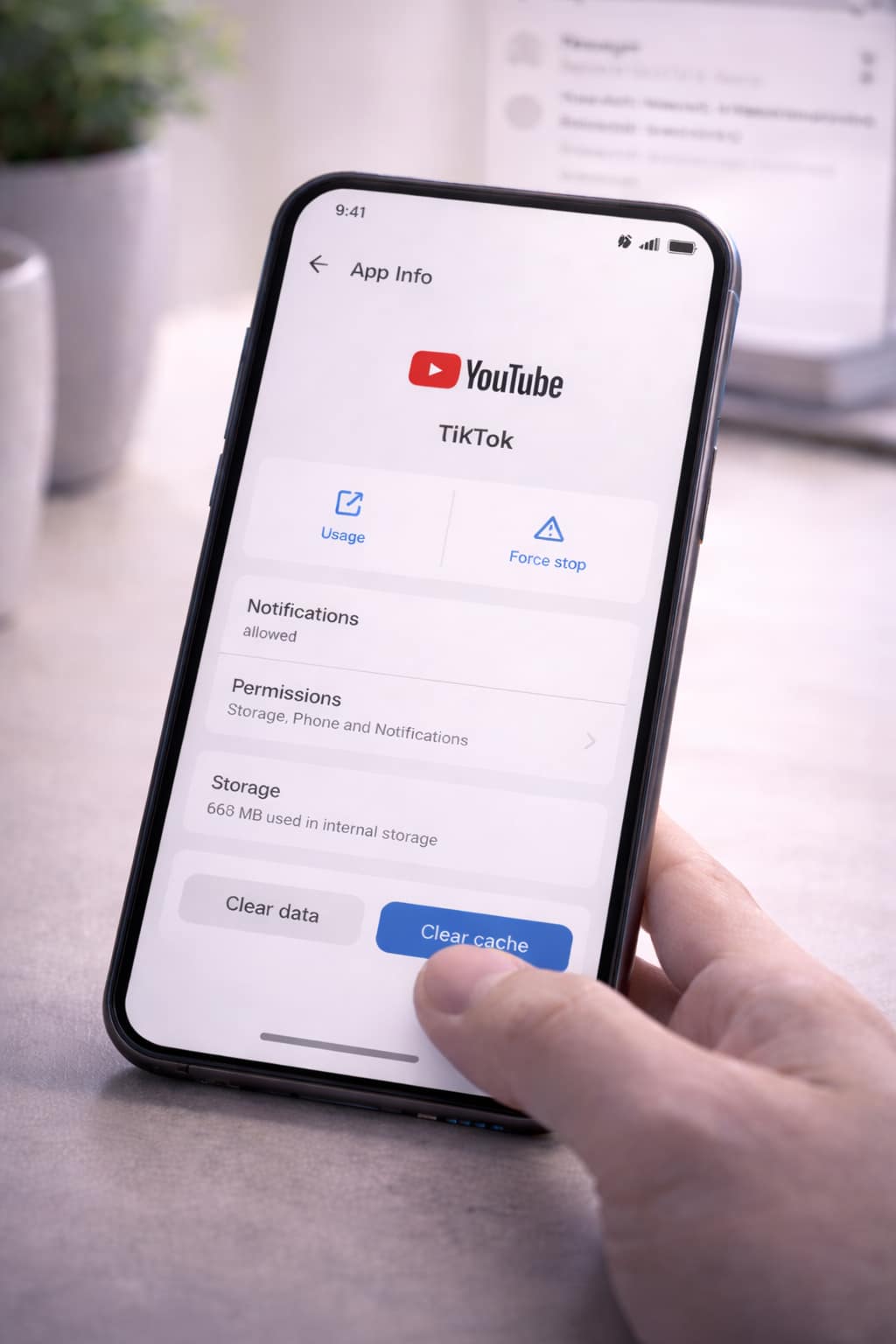
3️⃣ Fix 3: Clear YouTube Cache (Android Only)
Corrupted cache causes frozen or buffering videos.
Steps:
Settings → Apps → YouTube → Storage → Clear Cache
[Insert Screenshot Step: Clear Cache]
iPhone users:
Reinstall YouTube (iOS does not support manual cache clearing).
4️⃣ Fix 4: Restart Your Phone
Memory glitches cause many video loading problems.
Restarting clears temporary bugs and resets connections.
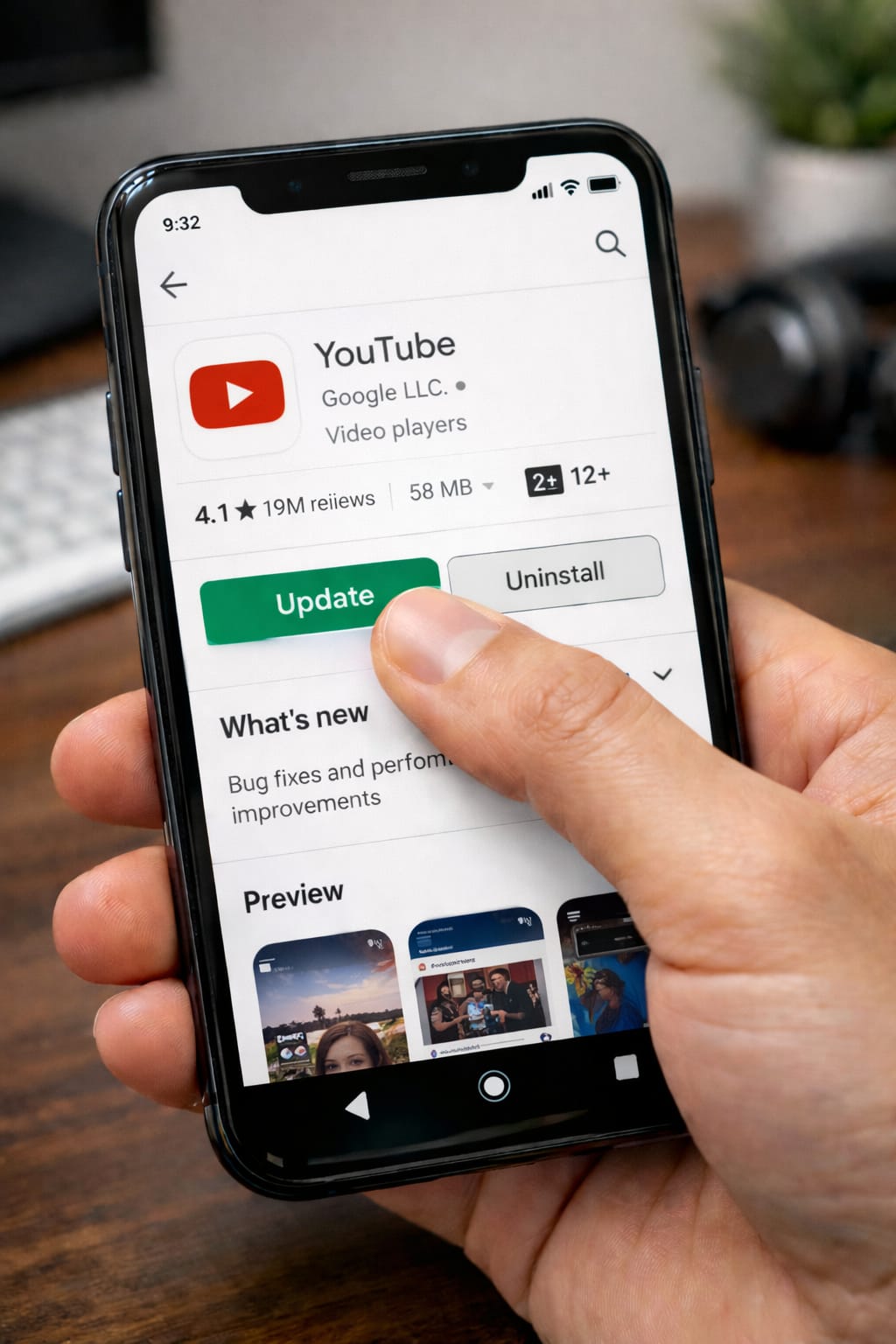
5️⃣ Fix 5: Update the YouTube App
Outdated versions often freeze, crash, or fail to load content.
Update via:
Play Store → Update
App Store → Update
6️⃣ Fix 6: Check YouTube’s Server Status
Sometimes the issue isn’t your device.
Search: “YouTube server down” or check Downdetector.
If servers are down, wait until YouTube fixes it.
7️⃣ Fix 7: Clear Browser Cookies (If Using YouTube on Browser)
Cookies can interfere with video playback.
Chrome:
Menu → History → Clear Browsing Data
Safari:
Settings → Safari → Clear History & Website Data
Alternative Methods (If Videos Are Still Not Loading)
Use YouTube Web Instead of the App
Sometimes the website works better.
Use a Different Browser (Chrome → Firefox or Safari)
Browser extensions may block videos.
Disable Data Saver Mode
YouTube needs unrestricted data to load high-quality content.
Reset Network Settings
Fixes hidden connection problems.
Reinstall YouTube
Removes corrupted files causing loading issues.
How to Contact YouTube Support
YouTube allows direct support inside the app.
Steps:
YouTube → Profile Icon → Help & Feedback → Send Feedback
Include:
- Screenshot of loading error
- Device (Android/iPhone)
- App version
- Internet type (Wi-Fi/Data)
- Steps you’ve already tried
This helps YouTube respond faster.
Conclusion
If YouTube videos are not loading, the easiest fixes are checking your internet, clearing cache (Android), updating the app, restarting your phone, and reinstalling YouTube. Follow the steps carefully, and you should be able to watch videos again without buffering or freezing.
FAQs:
Q. Can I fix YouTube without clearing app data?
A. Yes. In most cases, clearing the cache, force-stopping the app, restarting your phone, and updating YouTube can fix the issue without deleting your app data.
Q. Why are YouTube videos not loading on my phone?
A. YouTube videos may not load because of a weak internet connection, an outdated app version, corrupted cache files, or temporary server issues. Try clearing the YouTube cache (on Android), updating the app, restarting your phone, or switching between Wi-Fi and mobile data. If the problem continues, reinstalling YouTube often fixes persistent loading issues.
Q. Why is YouTube not sending notifications or verification codes?
A. This usually happens when notifications are blocked on your device, the YouTube app is outdated, or there are delays in email or SMS delivery. Restart your phone, turn off any VPN, and check your notification settings inside the YouTube app.