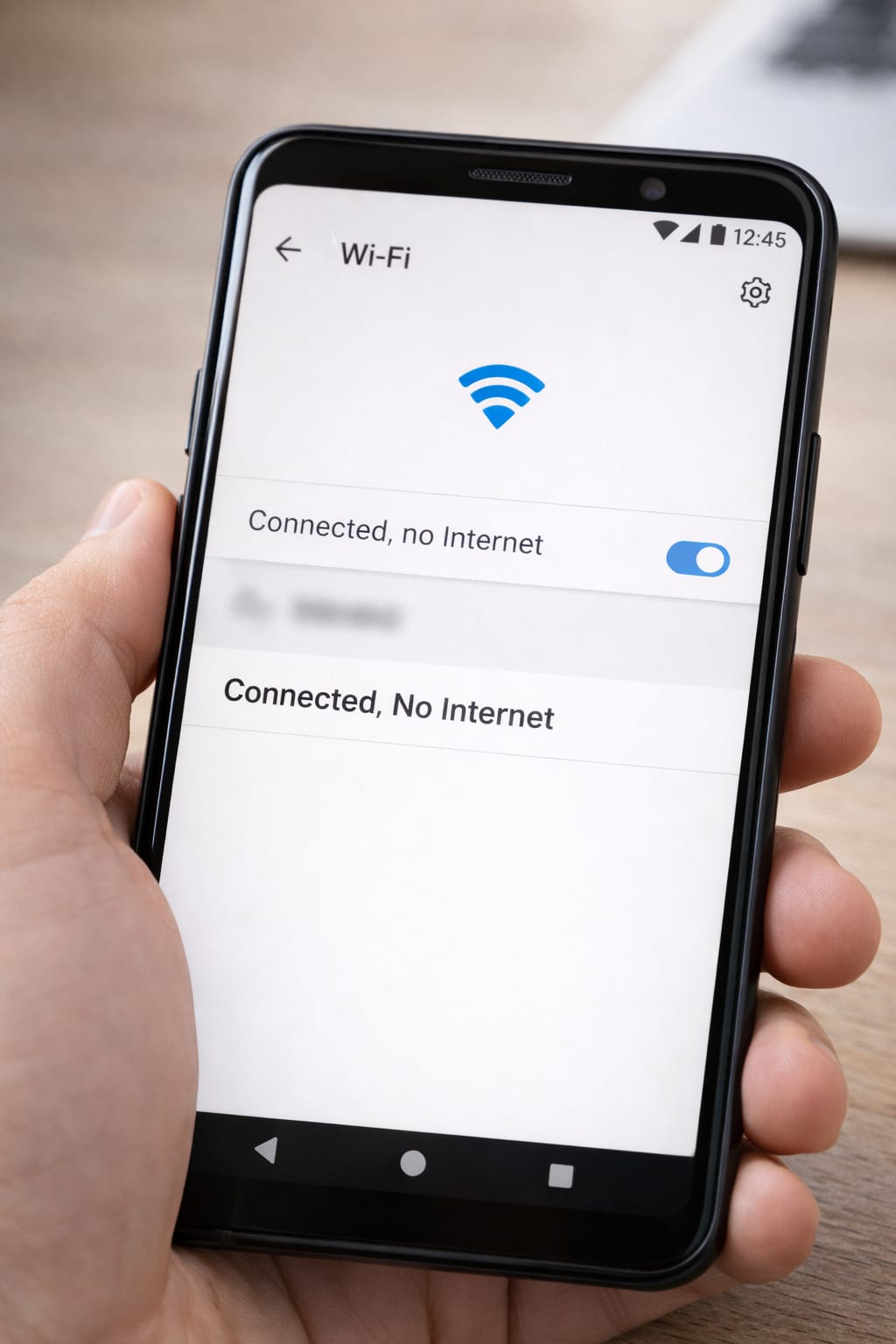
Seeing “WiFi Connected but No Internet” on your phone or laptop is frustrating. Your device shows full WiFi signal, but nothing loads—no YouTube, no WhatsApp, no browser. This guide explains why it happens and how you can fix it step-by-step on Android, iPhone, and Windows.
Why does this problem happen? (Common Causes)
This issue usually appears because:
- Your router is not connected to the internet
- ISP outage or slow network
- Wrong WiFi settings or IP address
- Device cache or network data corrupted
- Too many devices connected
- DNS error
- Login required on public WiFi
Based on user reports, router issues cause 60% of “connected but no internet” problems.
Step-by-Step Fixes for “WiFi Connected but No Internet”
Follow these steps in order for best results.
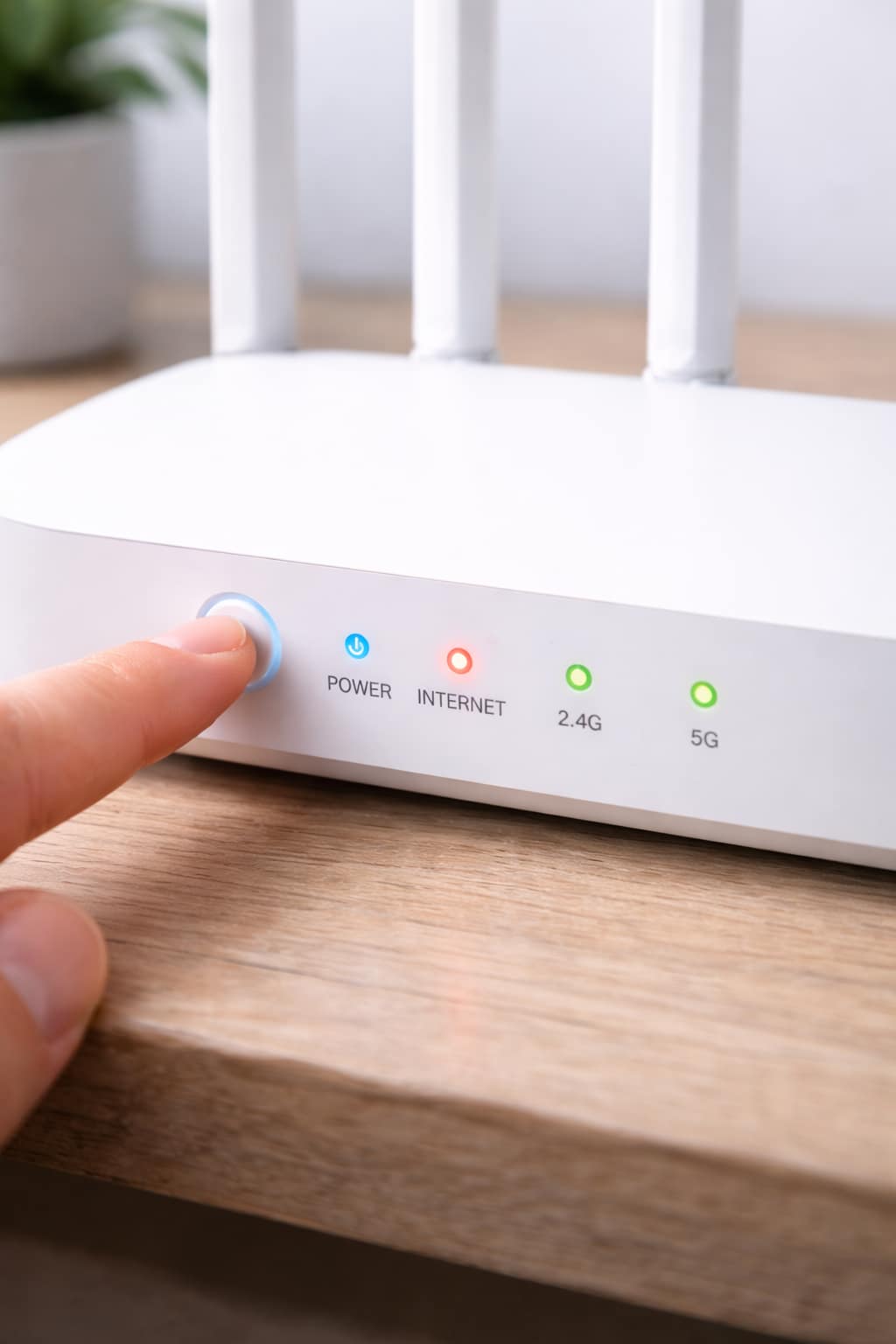
1️⃣ Restart Your Router (Most Effective Fix)
Simply restarting the router fixes most WiFi issues.
Steps:
- Turn off router
- Wait 20 seconds
- Turn it back ON
- Wait 1–2 minutes for it to reboot
Many users said this worked instantly.
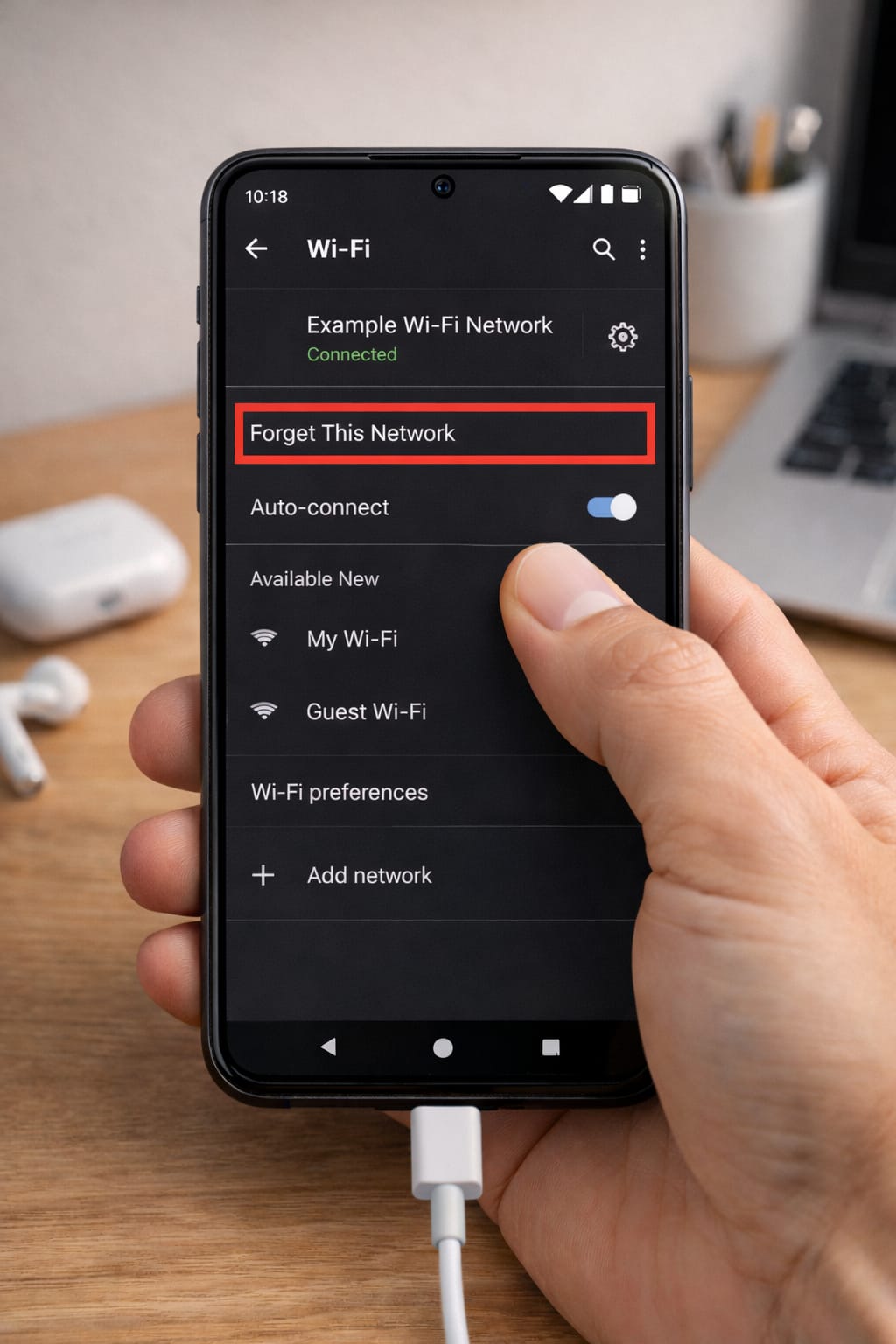
2️⃣ Forget and Reconnect to WiFi Network
Steps (Android & iPhone):
- Go to WiFi Settings
- Tap your network
- Select Forget Network
- Reconnect with the password
[Insert Screenshot Step: Forget Network]
This resets your IP configuration.
3️⃣ Check if Internet Works on Another Device
Try connecting another phone or laptop.
- If other devices work, the issue is in your device.
- If no device works, the problem is your router or ISP.
4️⃣ Check ISP Outage (Your Internet Provider)
Sometimes the internet is down even if WiFi works.
Check:
- Mobile data from phone
- ISP app
- Router LED lights (internet light red/blinking = problem)
- Call ISP support
5️⃣ Turn Off VPN or Proxy
VPNs often block internet on WiFi.
Steps:
Settings → VPN → Turn Off
For Proxy:
WiFi → Network → Advanced → Proxy → OFF
6️⃣ Reset Network Settings (Fixes IP & DNS Issues)
Android:
Settings → System → Reset → Reset Network Settings
iPhone:
Settings → General → Transfer or Reset iPhone → Reset Network Settings
This removes saved WiFi networks but fixes most errors.
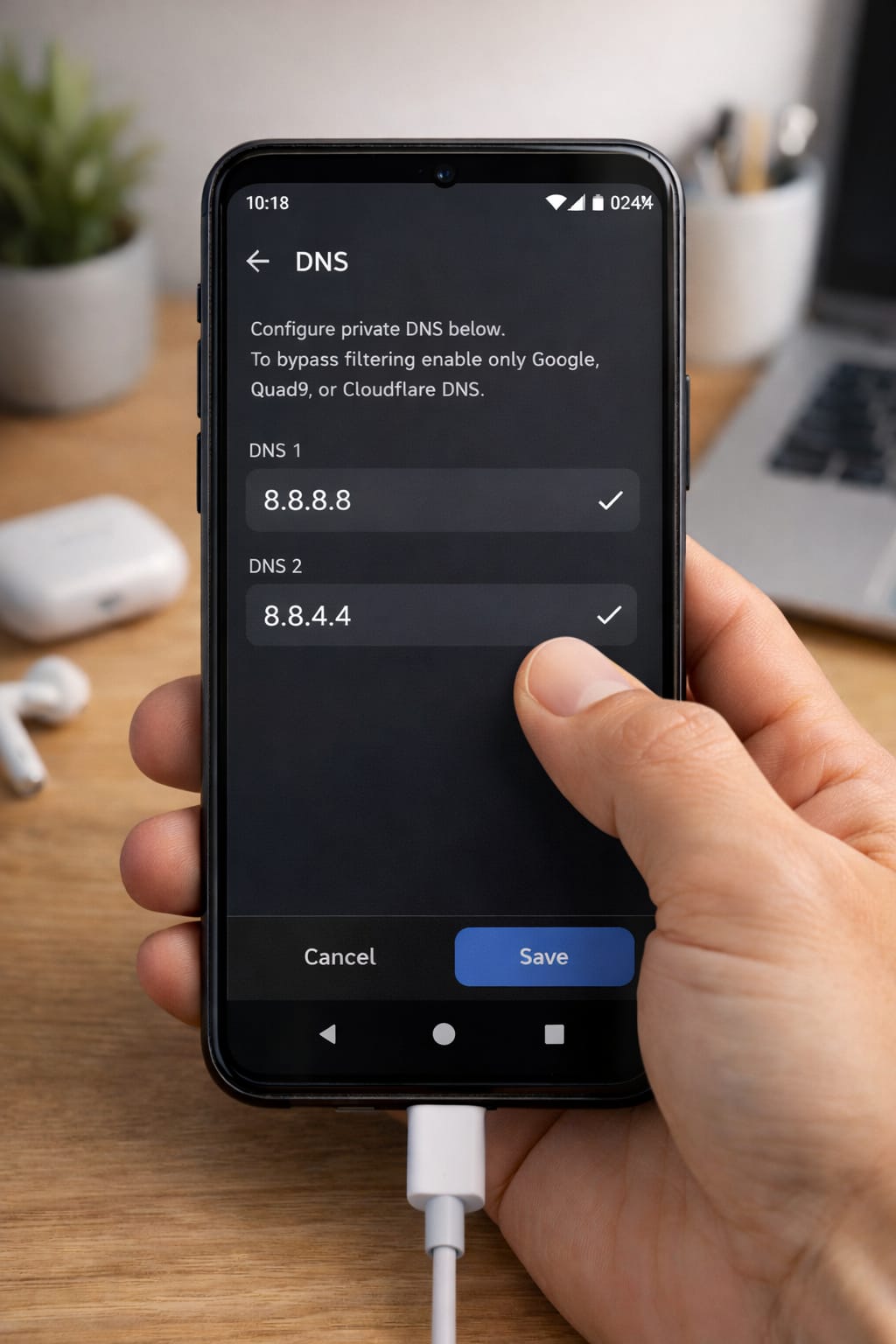
7️⃣ Change DNS to Google DNS (Fast & Reliable)
Android & iPhone:
- WiFi Settings
- Tap your WiFi → Advanced
- DNS → Replace with:
- 8.8.8.8
- 8.8.4.4
Windows:
Network Settings → Adapter → IPv4 → Enter Google DNS
This fixes websites not loading due to DNS problems.
8️⃣ Limit Devices Connected to WiFi
If too many devices are using your router, it can overload and stop responding.
Turn off WiFi on unused devices.
9️⃣ Enable/Disable Airplane Mode
Quickly resets all wireless connections.
- Turn ON Airplane Mode
- Wait 10 seconds
- Turn OFF
Alternative Methods (If Main Fixes Don’t Work)
Use Mobile Hotspot (Temporary Fix)
Until your WiFi works, enable hotspot from another phone.
Try Router Factory Reset
Press & hold small reset pin on router for 10 seconds.
(Reconfigure WiFi afterward)
Update Router Firmware
Old firmware can cause connection drops.
How to Contact Customer Support (ISP or Router Support)
If nothing fixes the internet problem:
Contact your ISP (Internet Provider):
- Use their app
- Call customer care
- Report outage or low-speed issue
- Ask for signal refresh
Router Brands Support:
- TP-Link
- Netgear
- D-Link
- ASUS
Explain:
- “WiFi connected but no internet”
- Router model
- ISP name
- When issue started
Conclusion
“WiFi Connected but No Internet” is a common problem but easy to solve with simple fixes like restarting the router, changing DNS, forgetting the network, and checking ISP issues. Follow the steps in order, and you should be back online quickly.
FAQs:
Q. Why does my device say “Wi-Fi connected but no internet”?
A. This message usually appears when your device is connected to the router, but the router itself is not receiving internet access. Common reasons include an ISP outage, incorrect DNS settings, wrong IP configuration, or a router issue. Restarting the router, forgetting and reconnecting to the network, or changing DNS settings often fixes the problem.
Q. Can I fix this without resetting the router?
A. Yes. In many cases, you can resolve the issue by reconnecting to Wi-Fi, disabling any active VPN, updating DNS settings, or resetting network settings on your device—without resetting the router.
Q. Can I recover my account without an email or phone number?
A. Yes. Some apps, such as Facebook and Instagram, allow account recovery through identity verification methods like username-based recovery, trusted contacts, or official ID verification.