
If your phone battery is draining faster than usual, you’re not alone. Many users face this issue after updates, heavy app usage, or wrong settings. This beginner-friendly guide explains why it happens and how you can fix fast battery drain at home using simple steps that work on both Android and iPhone.
Why Is My Mobile Battery Draining Fast?
Fast battery drain usually happens due to background apps, high screen brightness, poor network signals, outdated software, or overheating. According to user reports, social media, gaming, and GPS apps use the most battery. Fixing small settings often improves your phone’s battery life noticeably.
Common Causes
- Apps running in the background
- High screen brightness or always-on display
- Mobile data + GPS + Bluetooth enabled together
- Software bugs after system updates
- Battery health dropping due to age
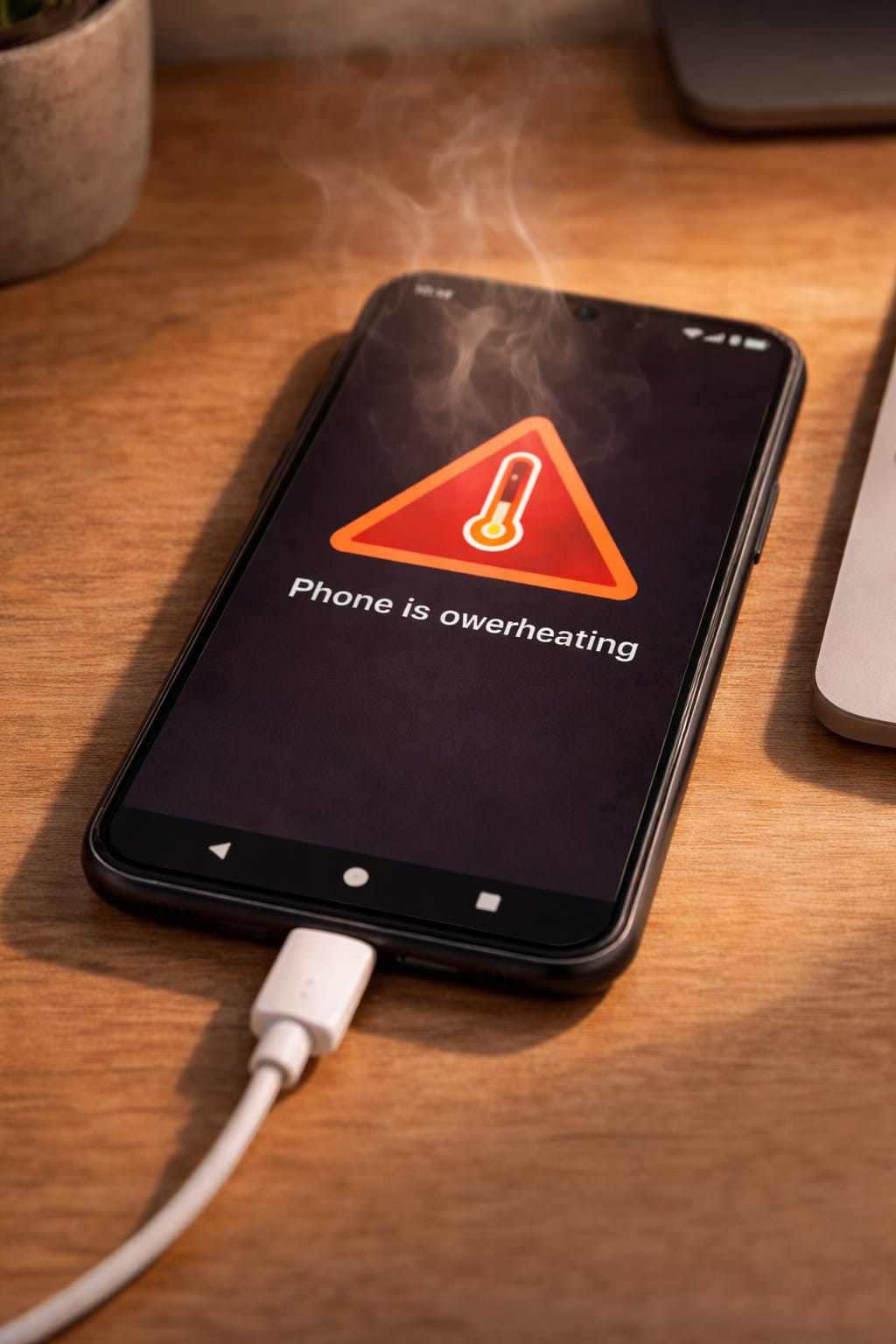
- Overheating while charging or using heavy apps
Step-by-Step Fixes for Fast Battery Drain
You can fix fast battery drain by adjusting a few settings: close background apps, reduce screen usage, turn off unused features, update the software, and restart the device. These steps are commonly used methods recommended in smartphone support guidelines.
1. Close Background Apps
- Open Recent Apps
- Swipe to close heavy apps
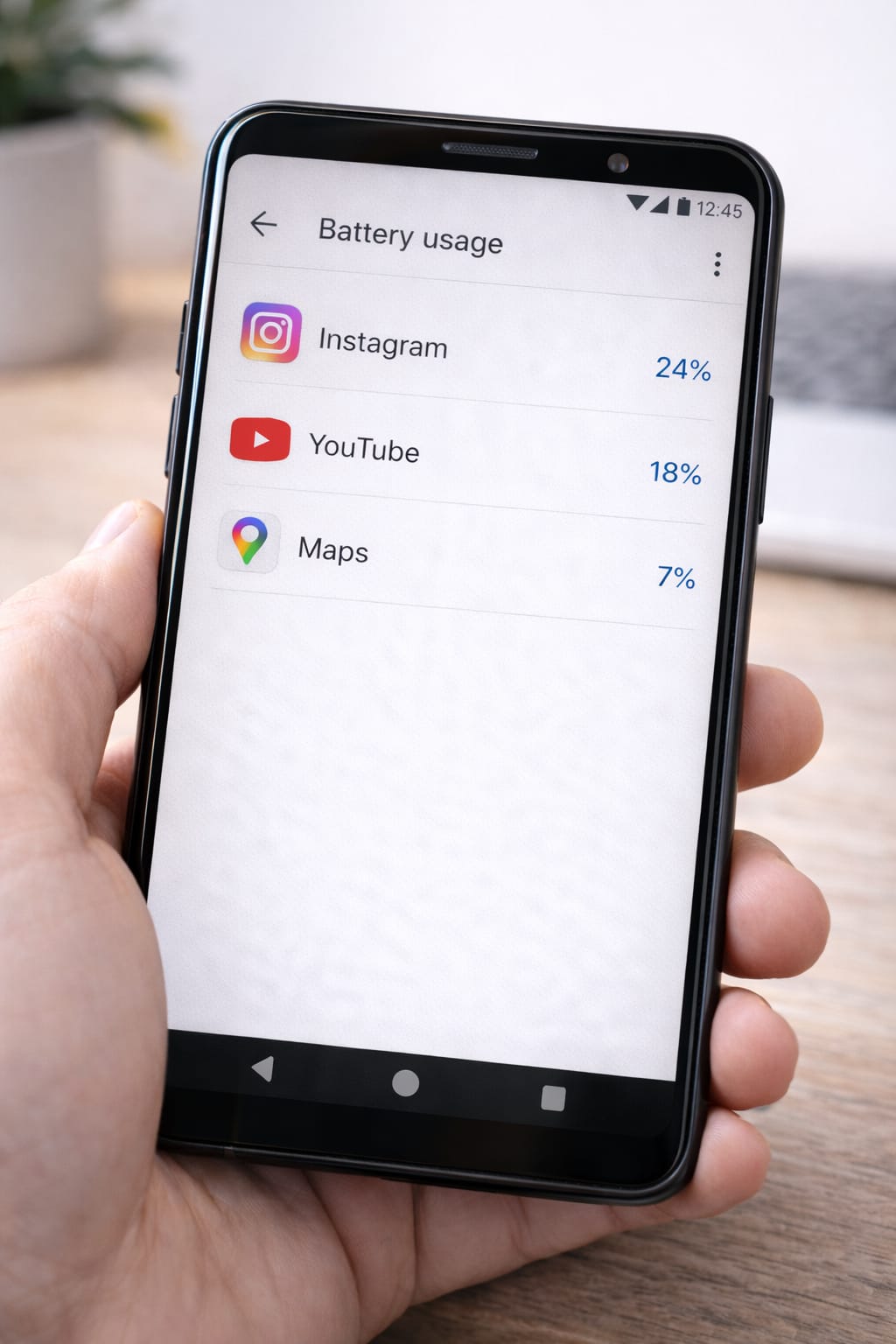
- Check battery usage inside Settings → Battery
➡ Apps like Instagram, YouTube, Maps, and games often consume the most power.
2. Reduce Screen Consumption
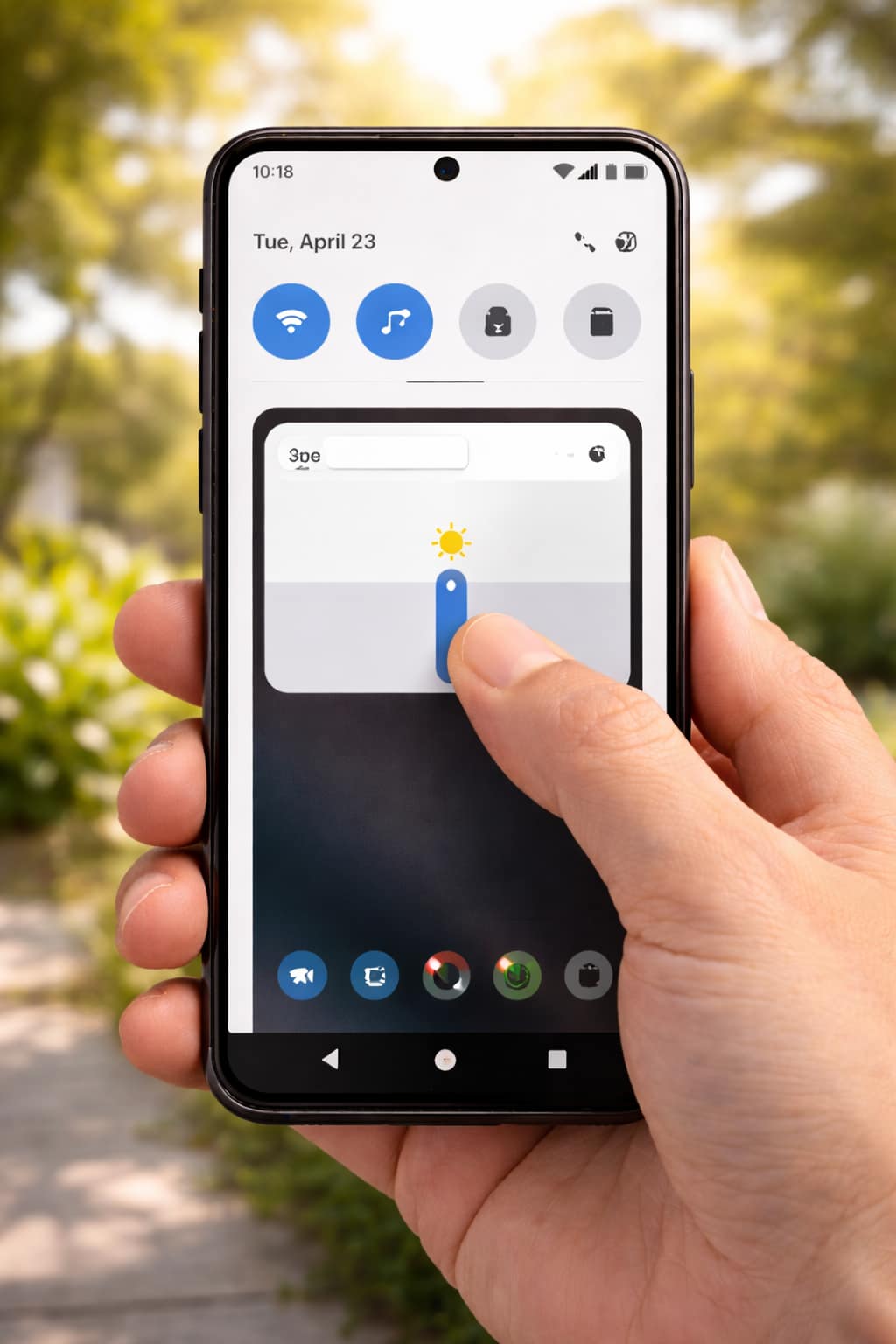
- Set brightness to auto
- Reduce screen timeout
- Turn off Always-on Display (if available)
- Use dark mode for OLED phones
3. Turn Off Unused Features
Disable features you are not using:
- WiFi
- Bluetooth
- Mobile hotspot
- GPS
- NFC
➡ These constantly search for signals, which increases battery drain.
4. Update Software
According to support guidelines, bugs in outdated versions may cause excessive battery usage.
- Go to Settings → Software Update → Check for updates
5. Restart the Phone
A simple restart clears temporary processes and improves performance.
6. Enable Battery Saver Mode
- Android: Settings → Battery → Battery Saver
- iPhone: Settings → Battery → Low Power Mode
This limits background processes and extends battery life.
Alternative Fix (If the Main Methods Don’t Work)
If battery issues continue, try recalibrating your battery, uninstalling heavy apps, or resetting settings. For older devices, battery wear may be the cause. Using the phone in cool environments and avoiding charging during use also helps reduce drain.
More Solutions
- Battery Recalibration
- Drain phone to 0%
- Charge to 100% without interruption
- Restart
- Reset App Preferences
- Clear Cache (Android)
How to Contact Official Support
If nothing helps, reach out to official smartphone support. You can access their Help Center from within your phone settings or by searching for your device brand’s support page online. They offer repair options, live chat, and battery health diagnostics.
Where to Find Support
- Android: Settings → About Phone → Support
- iPhone: Settings → General → About → Support
Conclusion
Fast battery drain usually comes from background activity, high screen usage, or outdated software. By adjusting settings, closing apps, and using battery-saver features, you can fix most issues at home. If problems continue, contact official support for diagnostics.
FAQs
Q. Why is my phone battery draining even when not in use?
A. This usually happens because of background apps, weak network signals, or software bugs after updates. Checking the battery usage chart can help identify which apps are consuming power.
Q. Can I fix battery drain without resetting the phone?
A. Yes. Most battery drain issues can be fixed by updating apps, clearing cache, and adjusting battery settings. A factory reset should be considered only as a last option.
Q. Does fast charging reduce battery life?
A. Fast charging can cause slight heating, which may affect battery health over time. However, occasional fast charging is generally safe for everyday use.
Q. Why does my phone heat up while charging?
A. Heating during charging is often caused by heavy apps running in the background, poor ventilation, or using a non-original or low-quality charger.