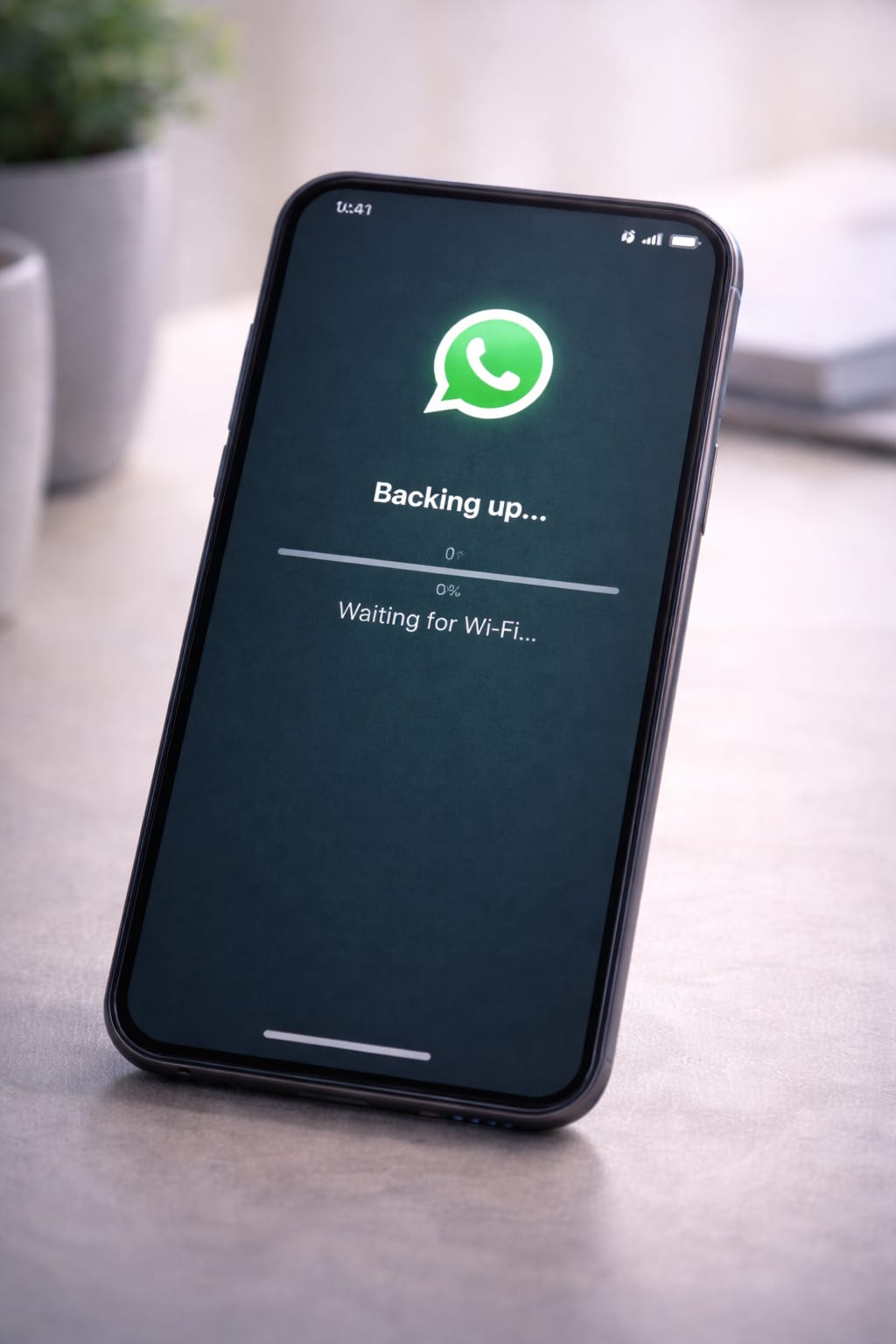
When WhatsApp backup gets stuck on “Preparing backup…”, “Waiting for Wi-Fi…”, or freezes at 0%, 50%, or 99%, it can be frustrating—especially when you’re switching phones or trying to free storage. Many users face this issue on both Android and iPhone. This guide shows simple, real fixes that work.
Why Does WhatsApp Backup Get Stuck?
Based on common user reports and general troubleshooting, the most common reasons include:
- Weak or unstable internet connection
- Insufficient cloud storage (Google Drive / iCloud)
- WhatsApp outdated
- Corrupted cache or app data
- Battery saver blocking WhatsApp
- Incorrect Google/iCloud account login
- WhatsApp running in the background incorrectly
- Too many large videos in chat backup
Once you know the cause, fixing the backup is much faster.
Step-by-Step Fixes for WhatsApp Backup Stuck (Android & iPhone)
Follow each step in order. Most users fix the problem by Step 4.
1️⃣ Fix 1: Check Your Internet Connection
WhatsApp backup needs a stable connection (especially for videos).
Try this first:
- Turn Airplane Mode ON → wait 5 sec → OFF
- Switch Wi-Fi to Mobile Data (or vice versa)
- Restart your router
- Turn off VPN (WhatsApp backup is slower on VPN)
[Insert Screenshot Step: Network Settings]
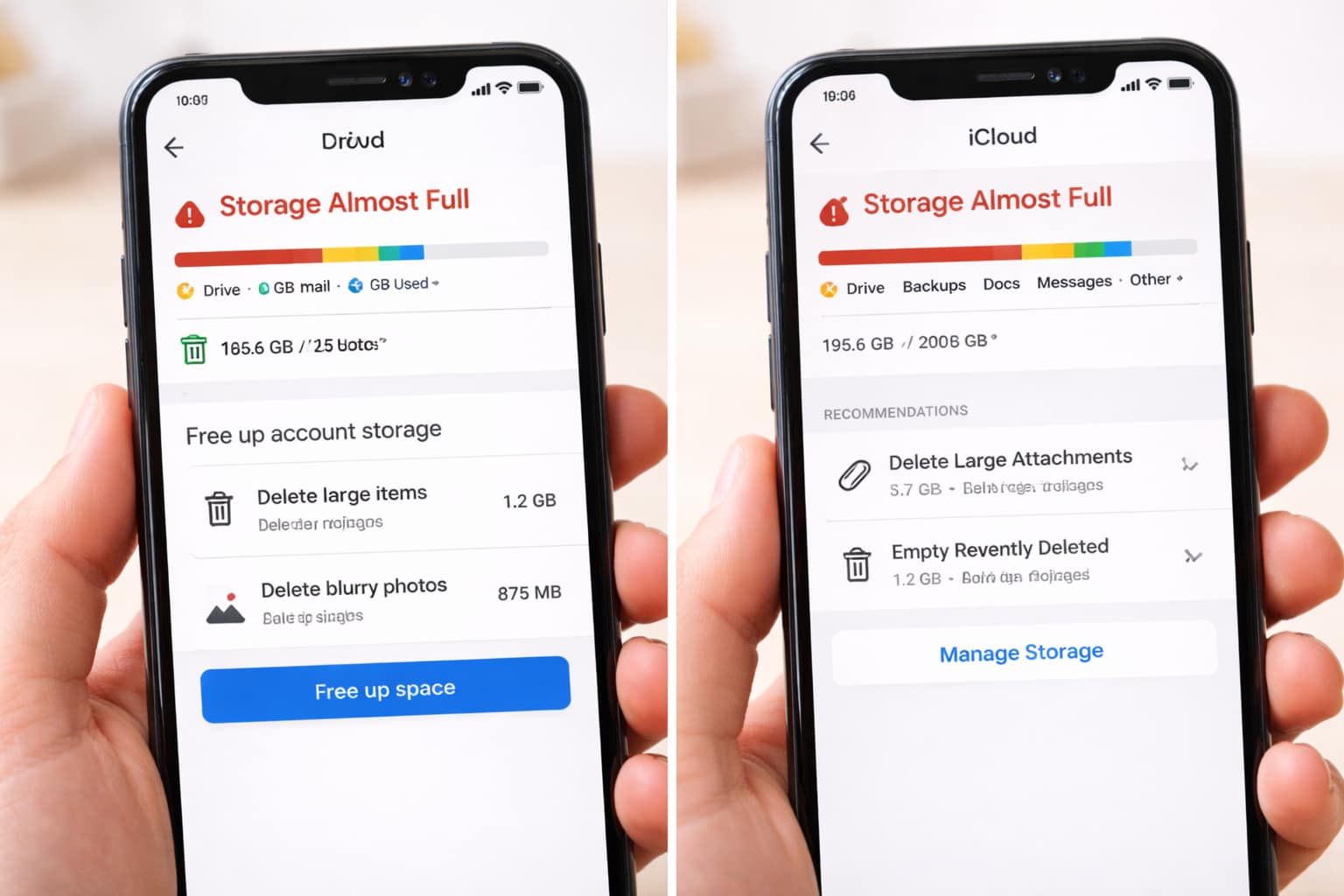
2️⃣ Fix 2: Free Up Cloud Storage
Backup gets stuck when Google Drive or iCloud is full.
Android (Google Drive):
Drive → Storage → Delete unnecessary files
iPhone (iCloud):
Settings → Apple ID → iCloud → Manage Storage
Many users said freeing even 500MB helped WhatsApp complete the backup.
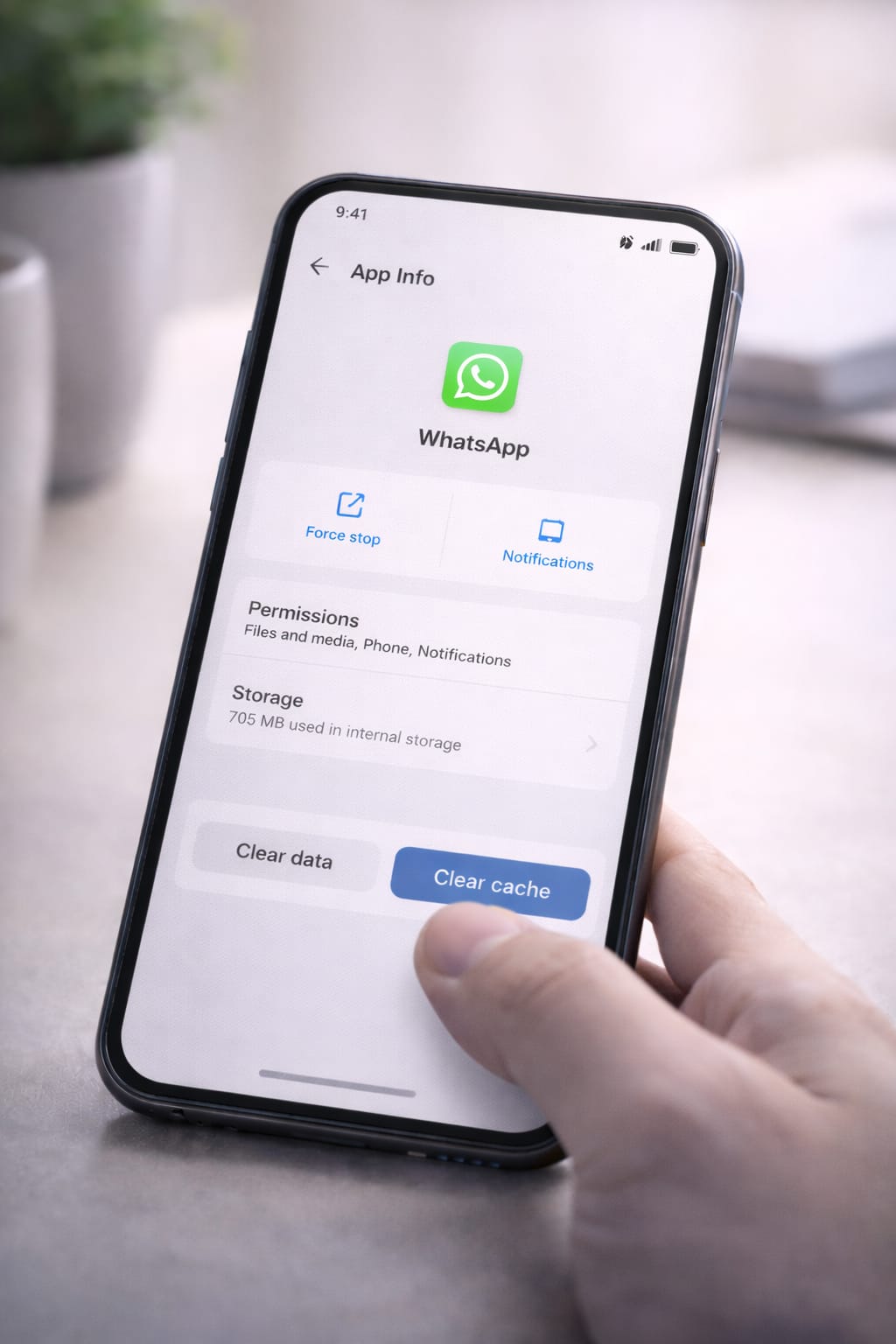
3️⃣ Fix 3: Clear WhatsApp Cache (Android Only)
Corrupted cache often causes stuck backup.
Steps:
Settings → Apps → WhatsApp → Storage → Clear Cache
[Insert Screenshot Step: Clear Cache]
This does not delete chats.
4️⃣ Fix 4: Update WhatsApp
Old versions have known backup bugs.
Update via:
Play Store → Update
App Store → Update
After updating, try backup again.
5️⃣ Fix 5: Disable Battery Saver & Background Restrictions
Battery saver blocks cloud backups.
Android:
- Settings → Battery → Disable Battery Saver
- Settings → Apps → WhatsApp → Battery → Allow Background Activity
iPhone:
Settings → Battery → Turn off Low Power Mode
Try the backup again.
6️⃣ Fix 6: Re-Login to Google Drive / iCloud
If your account token expired, backup freezes.
Android:
Settings → Google → Backup → Log out & Re-login
iPhone:
Settings → Apple ID → Sign out (optional) or re-enable iCloud Drive
This refreshes your cloud connection.
7️⃣ Fix 7: Restart Your Phone
A simple restart fixes temporary system bugs that break backup.
- Hold power → Restart
- Open WhatsApp → Try backup again
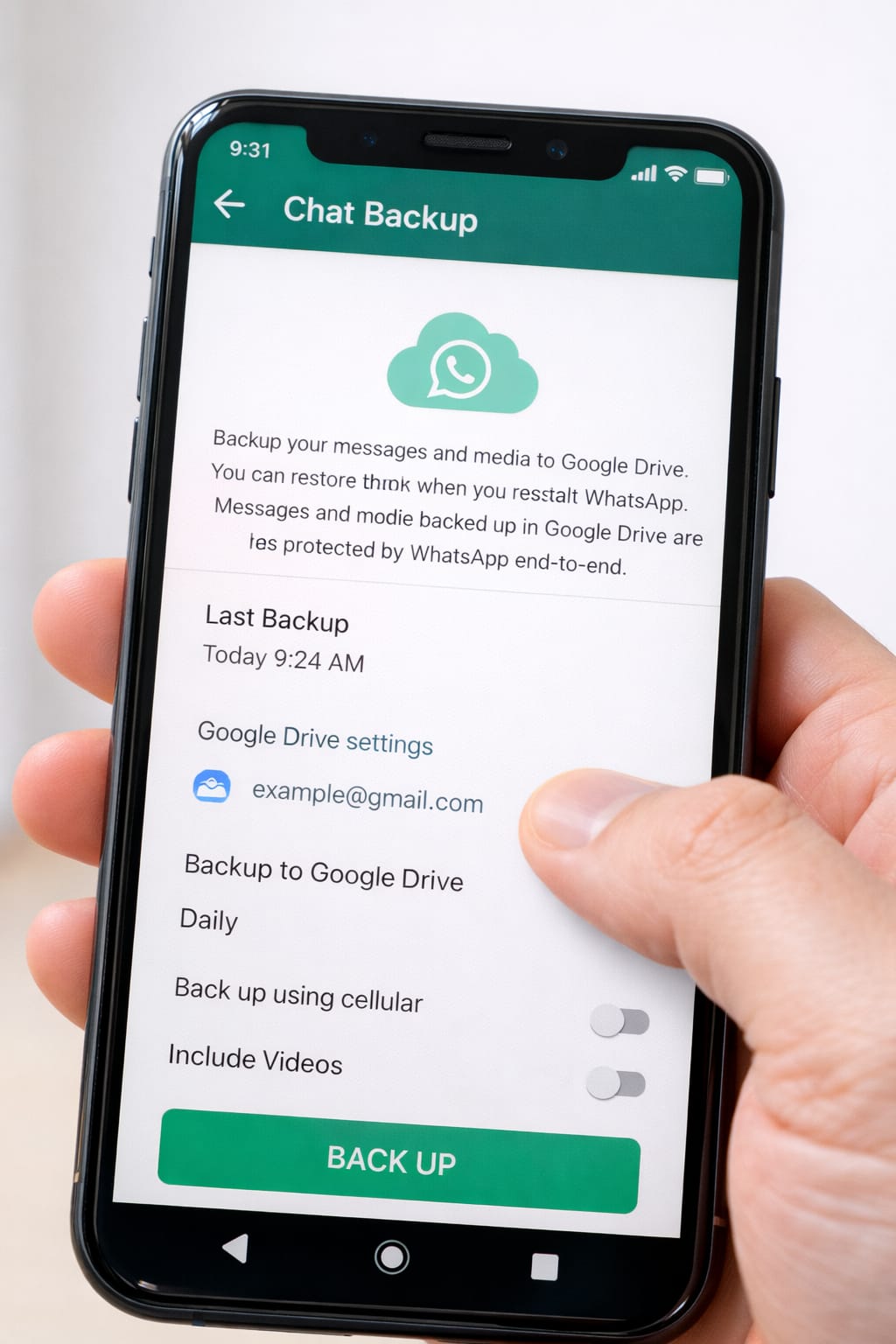
8️⃣ Fix 8: Remove Large Videos From Chat Backup
Videos take the longest to upload.
Steps:
WhatsApp → Settings → Chats → Chat Backup → Exclude Videos
Or delete large videos inside chats.
This fix is recommended by WhatsApp Help Center for slow backups.
Alternative Methods (If WhatsApp Backup Is Still Stuck)
Use the Manual Chat Export Method
WhatsApp → Chat → Export Chat → Send to email
(Not a full backup, but works in emergencies.)
Use WhatsApp Web for Media Cleanup
Delete large files quickly using computer view.
Try Backup Over a Different Network
Public Wi-Fi sometimes works faster than home Wi-Fi.
Reinstall WhatsApp (Last Option)
Backup your important files → uninstall → reinstall
This resets corrupted files.
How to Contact WhatsApp Support
WhatsApp provides in-app support.
Steps:
WhatsApp → Settings → Help → Contact Us
Attach:
- Screenshot of backup screen
- Device model
- Android/iOS version
- Steps you’ve tried
Support usually responds within 24–48 hours.
Conclusion
Most WhatsApp backup stuck issues can be fixed by clearing cache, updating the app, freeing cloud storage, turning off battery saver, or restarting your phone. Follow these steps one by one, and your backup should complete successfully on both Android and iPhone.
FAQs:
Q. Can I recover WhatsApp chats without Google Drive or iCloud?
A. Yes, on Android devices. WhatsApp creates a local backup stored in Internal Storage → WhatsApp → Databases, which you can restore during reinstallation. On iPhones, a cloud backup is required for full chat recovery, but exporting chats can be used as a partial alternative.
Q. Why is WhatsApp not sending me a verification code?
A. This issue usually happens due to network problems, SIM card issues, too many verification attempts, or the use of a VPN. Restart your phone, disable any VPN, and switch between Wi-Fi and mobile data. WhatsApp recommends waiting at least 60 seconds before requesting a new verification code.
Q. How do I fix WhatsApp backup stuck on Android?
A. WhatsApp backups often get stuck because of slow internet, insufficient Google Drive storage, an outdated app version, or corrupted cache files. To fix this, clear the WhatsApp cache, update the app, turn off battery saver mode, and free up space on Google Drive. Restarting your phone or signing out and back into your Google account can also refresh the backup process.