
When Instagram won’t open, freezes on the logo screen, or keeps crashing, it can ruin your day. Many users face the same problem—loading errors, app not opening, “No Internet” message, or endless black screen. This guide shows simple, real fixes to help you open Instagram again on both Android and iPhone.
Why Is Instagram Not Opening?
Instagram may fail to open for several reasons. Based on common user reports and general support recommendations, these are the most frequent causes:
- Poor or unstable internet connection
- Instagram app outdated
- Corrupted app cache or data
- Server outage
- Insufficient device storage
- Logged-out session or expired login token
- Using VPN or proxy
- Account temporarily locked
Understanding the cause helps you choose the right fix.
7 Ways to Fix Instagram Not Opening (Android & iPhone)
Follow each fix step-by-step. Many users solve it by Step 3.
1️⃣ Fix 1: Check Your Internet Connection
Instagram won’t open properly without a stable connection.
Try these quick steps:
- Turn Airplane Mode ON → wait 5 seconds → OFF
- Switch between Wi-Fi and Mobile Data
- Restart your router
- Disable VPN (Instagram may block VPN IPs)
[Insert Screenshot Step: Network Settings]
2️⃣ Fix 2: Force Close the Instagram App
This solves temporary loading glitches.
Android:
Settings → Apps → Instagram → Force Stop
iPhone:
Swipe up from bottom → remove Instagram from Recents
Try opening the app again.
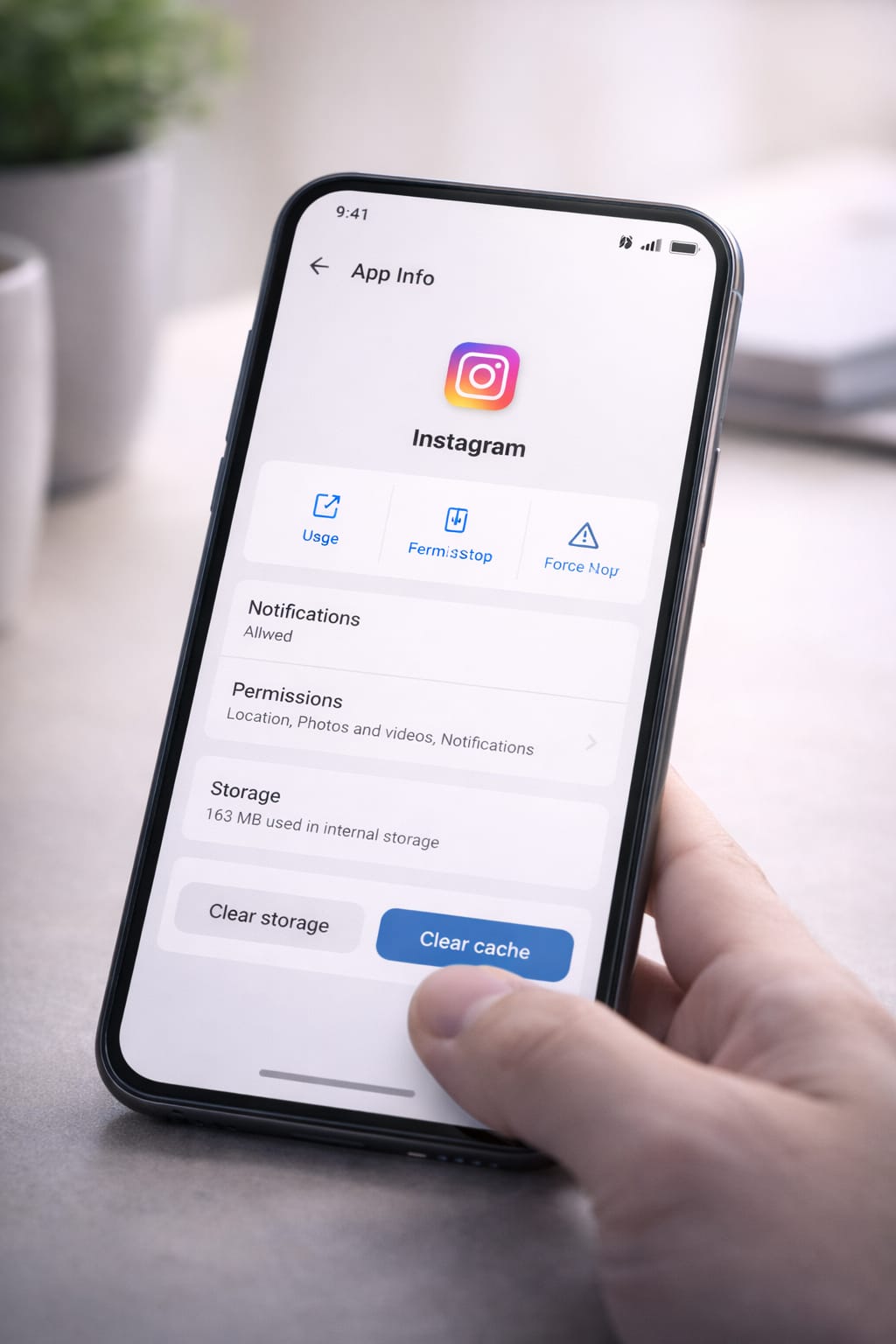
3️⃣ Fix 3: Clear Instagram Cache (Android Only)
A corrupted cache can cause the app to stop opening.
Steps (Android):
Settings → Apps → Instagram → Storage → Clear Cache
[Insert Screenshot Step: Clear Cache]
iPhone users:
iOS does not offer cache clearing. Skip to Fix 6 (Reinstall App).
4️⃣ Fix 4: Restart Your Phone
Restarting clears temporary bugs that prevent the app from loading.
Many users said a simple restart fixed the issue instantly.
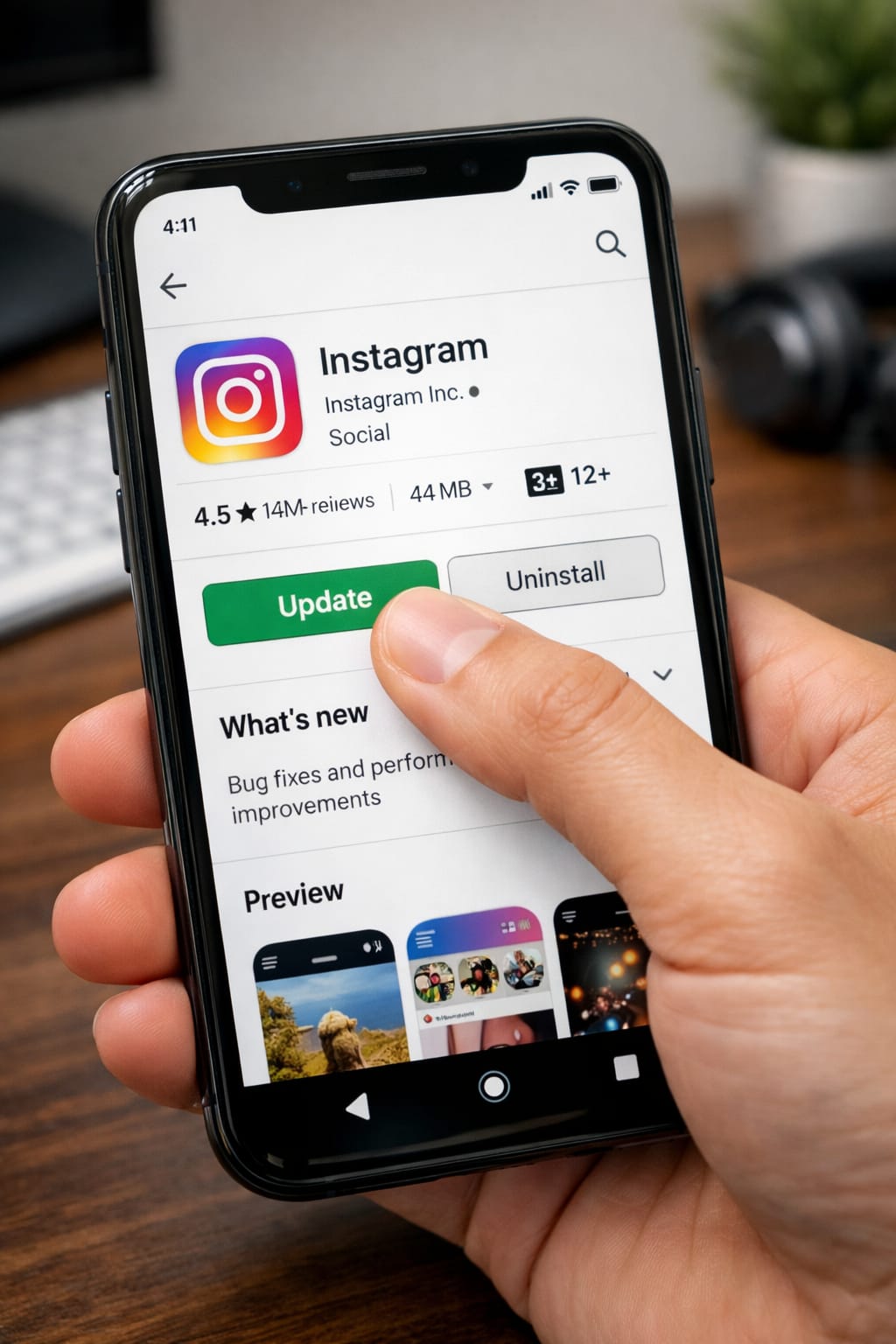
5️⃣ Fix 5: Update Instagram
Older Instagram versions may crash or fail to load.
Update:
- Android: Play Store → Search “Instagram” → Update
- iPhone: App Store → Updates → Instagram → Update
After updating, open the app again.
6️⃣ Fix 6: Reinstall Instagram
Reinstalling removes corrupted files and fixes most app opening issues.
Steps:
- Delete Instagram
- Restart your phone
- Install it again from Play Store or App Store
This does not delete your account—only local app data.
7️⃣ Fix 7: Turn Off Background Data Restrictions
Instagram needs background data to load properly.
Android:
Settings → Apps → Instagram → Mobile Data → Allow Background Data
iPhone:
Settings → Instagram → Enable Background App Refresh
Alternative Methods (If Instagram Still Won’t Open)
If the main fixes did not work, try these:
Use the Web Version
Go to instagram.com in your browser. Works even if the app is broken.
Try Logging In from Another Device
This helps check if your account is temporarily restricted.
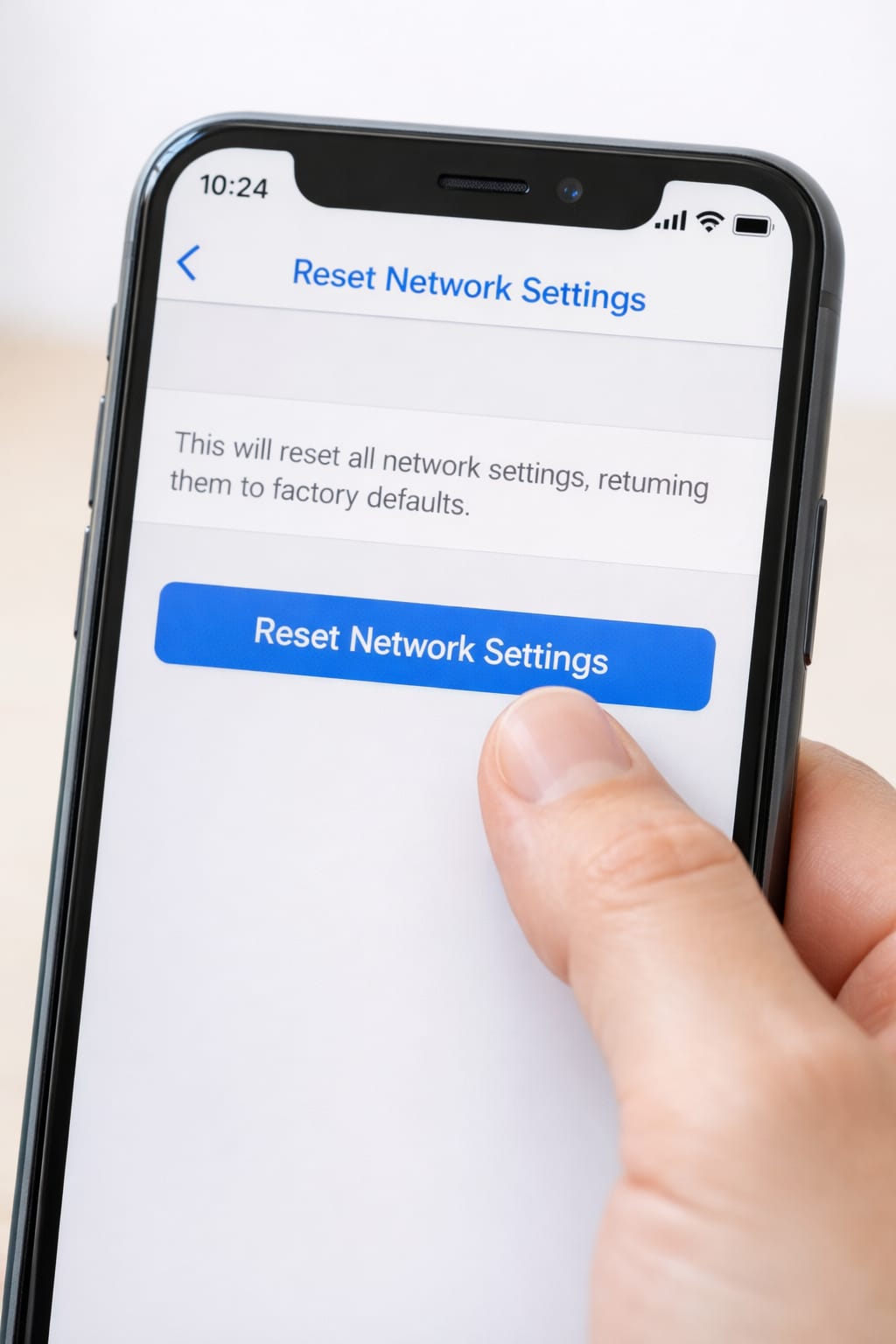
Reset Network Settings
Useful for hidden network issues.
Android: Settings → System → Reset Options
iPhone: Settings → General → Transfer/Reset → Reset Network Settings
Wait for Server Fixes
Sometimes Instagram’s servers are down. Check Downdetector.
How to Contact Instagram Support
If none of the methods work, contact Instagram through the app or website.
In-App Method:
Settings → Help → Report a Problem
Web Support:
Instagram.com → Help Center → “Privacy, Login & Account Issues”
Include helpful information:
- Screenshot of the issue
- Your device model
- App version
- What steps you already tried
This helps support respond faster.
Conclusion:
If Instagram is not opening, the fastest fixes are clearing the cache, updating the app, restarting your phone, and reinstalling Instagram. These steps work for both Android and iPhone users and are based on common troubleshooting solutions.
FAQs
Q. Why is Instagram not opening?
A. Instagram may not open because of internet connectivity issues, an outdated app version, corrupted cache files, or a temporary server outage. Try force-closing the app, clearing the cache (on Android), updating Instagram, and restarting your phone. If the issue continues, reinstalling the app is usually the most effective solution.
Q. Why is Instagram not sending me a verification code?
A. Verification codes may not arrive due to mobile carrier delays, the use of a VPN, or too many requests in a short time. Turn off any VPN, restart your phone, switch between Wi-Fi and mobile data, and try the “Send code to email instead” option. Many users report that email verification works instantly.
Q. Can I recover my account without an email or phone number?
A. Yes. Instagram provides account recovery options using your username, trusted devices, and identity verification forms. If you can’t access your email or phone number, tap “Need more help?” on the login screen and follow the on-screen recovery instructions.