
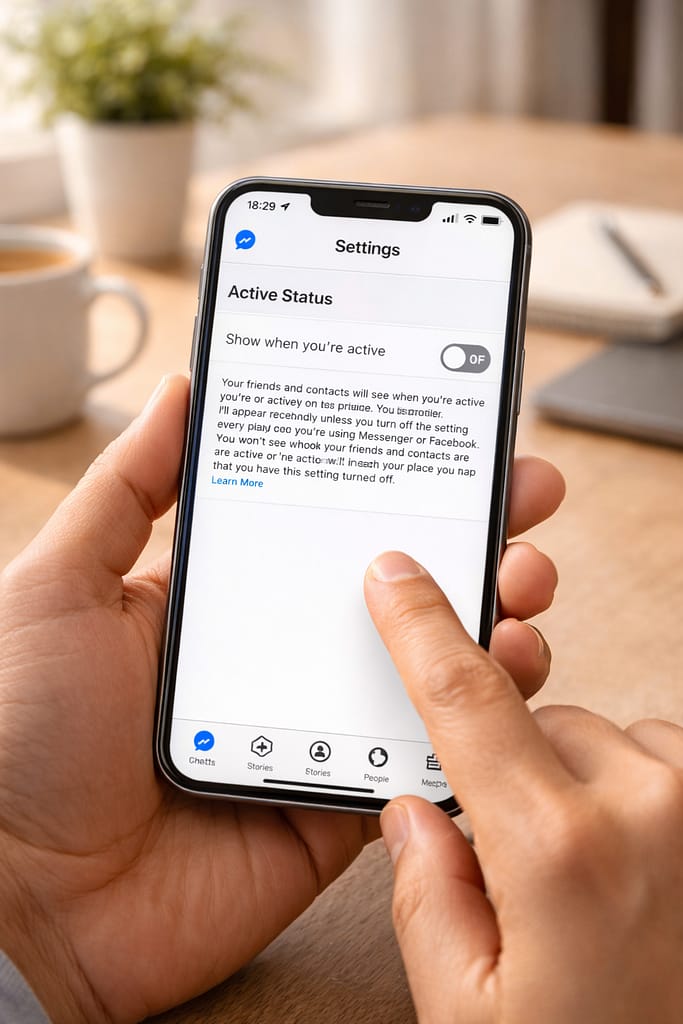
If you don’t want people to see when you’re online on Messenger, turning off Active Status is the best privacy option. Many users prefer staying online quietly without showing the green dot. This beginner-friendly guide explains how to turn off Active Status on Messenger on Android, iPhone, and desktop.
Why This Problem Happens? (Why People Want to Hide Active Status)
Many users want to turn off Active Status because:
- Friends keep messaging when they see you online
- You want privacy while browsing
- Messenger shows “Active now” even when you’re not using it
- The green dot stays on due to background activity
- Your account stays logged in on multiple devices
These are common issues reported by Messenger users.
How to Turn Off Active Status on Messenger (Android & iPhone)
Follow the steps carefully. This works on all devices.
1️⃣ Turn Off Active Status in Messenger App
This hides the green dot and last active time.
Steps (Android & iPhone):
- Open Messenger
- Tap your Profile picture (top left)
- Find Active Status
- Tap Show when you’re active
- Turn it OFF
[Insert Screenshot Step: Active Status Toggle]
Once turned off, people won’t see when you’re active.
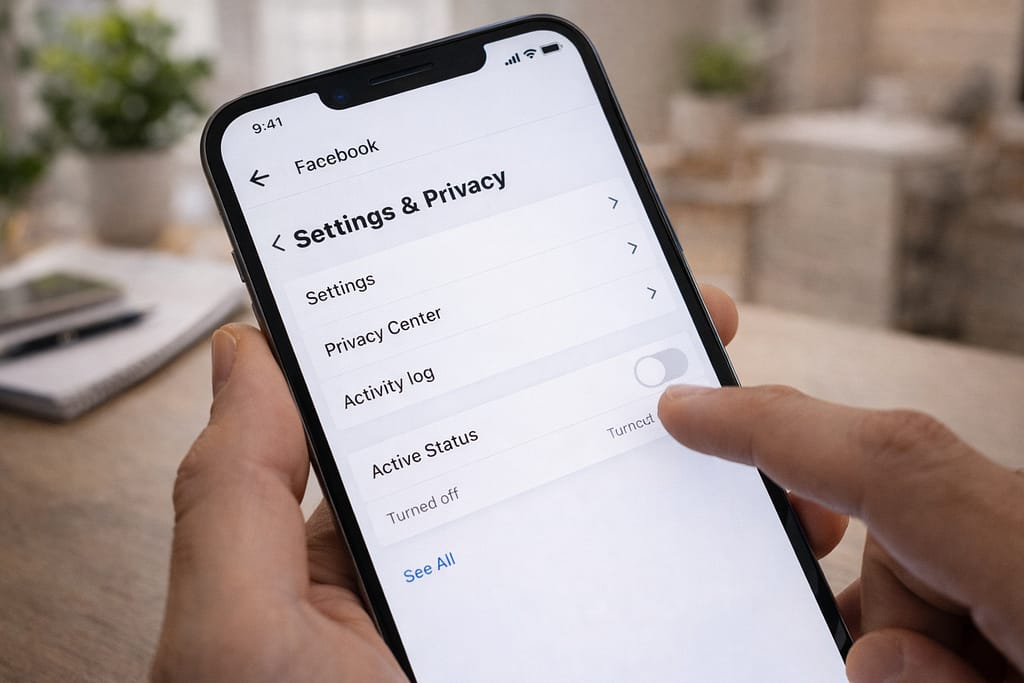
2️⃣ Turn Off Active Status on Facebook App
Messenger and Facebook share the same active status on most devices.
Steps:
- Open Facebook
- Tap the Menu (☰)
- Go to Settings & Privacy → Settings
- Scroll to Active Status
- Turn off Show when you’re active
This stops Facebook from updating your activity status.
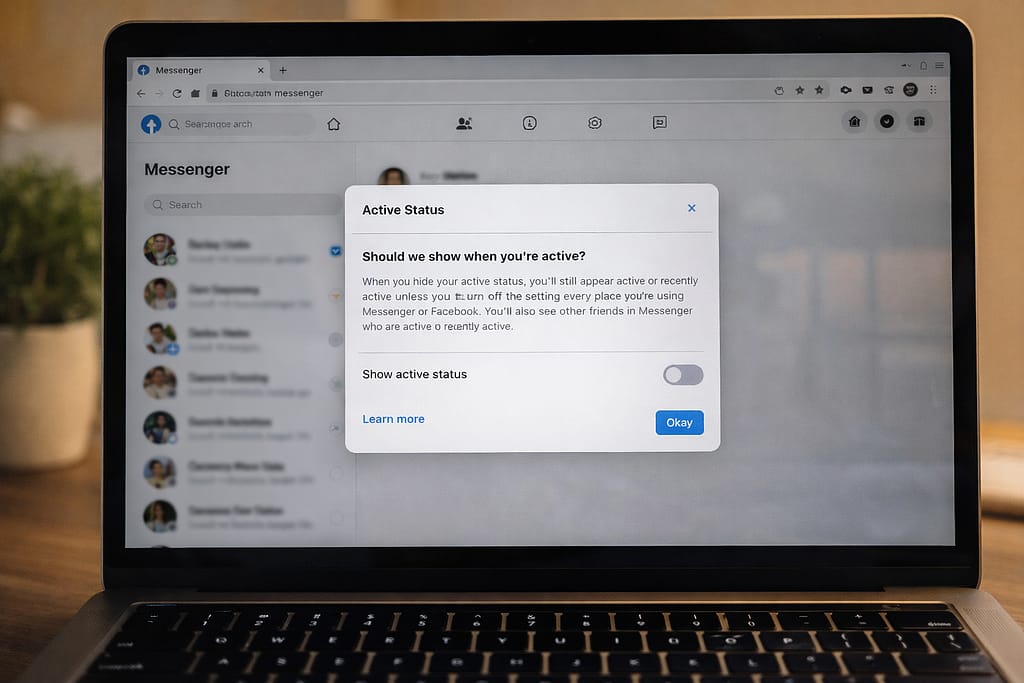
3️⃣ Turn Off Active Status on Desktop (Web Version)
Steps:
- Go to facebook.com
- Click Messenger icon
- Open the three dots
- Select Active Status
- Switch off Show when you’re active
If you’re logged in on laptop + phone, turn it off on both.
Additional Fixes (If Active Status Still Shows ON)
Sometimes Active Status still appears ON due to app bugs, background data, or multiple devices.
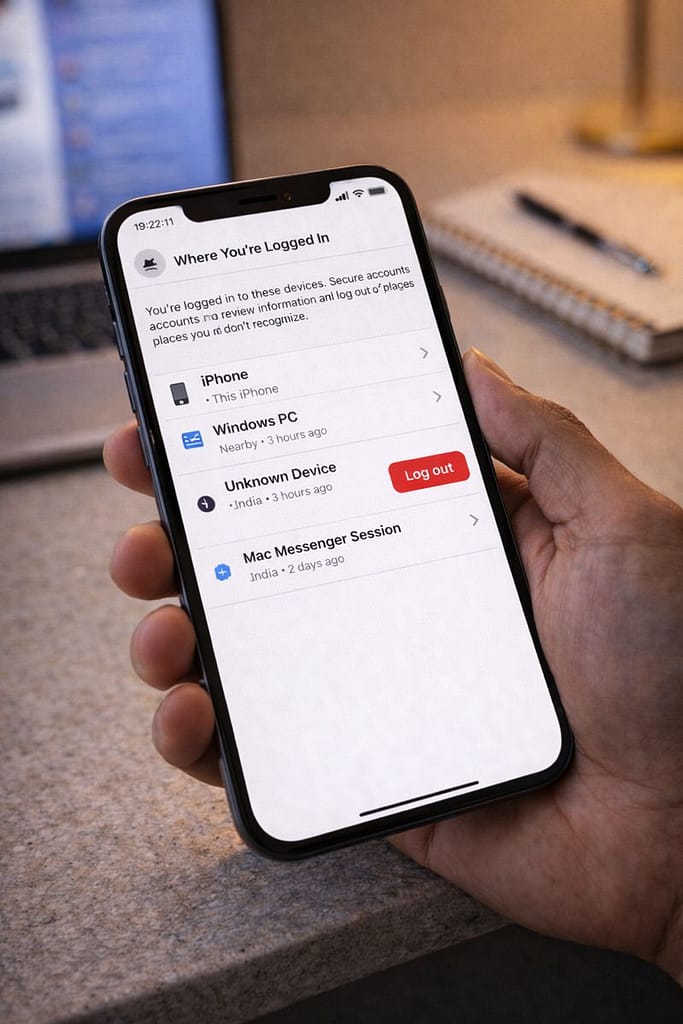
Fix 1: Log Out of Other Devices
Messenger stays active on other devices and continues showing the green dot.
Steps:
Facebook → Settings → Security & Login → Where You’re Logged In → Log out devices
Fix 2: Disable Background Data
Messenger may show you as active if it runs in background.
Android:
Settings → Apps → Messenger → Mobile Data → Disable Background Data
iPhone:
Settings → Messenger → Turn off Background App Refresh
Fix 3: Update the Messenger App
Old versions may show wrong active status.
Play Store / App Store → Update Messenger
Fix 4: Restart Your Phone
Helps when Active Status doesn’t refresh properly.
How to Contact Messenger / Facebook Support
If Active Status won’t turn off even after following all steps:
Steps:
Messenger app → Profile icon → Help → Report a Problem
Provide:
- Screenshot of Active Status issue
- Device model
- App version
- Steps you tried
This helps Facebook Support identify the issue.
Conclusion
Turning off Active Status on Messenger is simple—just switch off the privacy toggle inside Messenger, Facebook, and desktop. If it still shows ON, disable background data and log out of other devices. Follow these steps carefully for complete privacy.
FAQs:
Q. Why does Messenger show me active when I’m not online?
A. Messenger may show you as active because the app is running in the background, you’re logged in on multiple devices, or Facebook is syncing messages. Turning off Active Status, disabling background data, and logging out of other devices usually fixes this issue.
Q. Can people still see my last active time after turning off Active Status?
A. No. Once you turn off Active Status, Messenger hides both your Active Now and Last Active time. Keep in mind that you also won’t be able to see other people’s active status.
Q. Can I recover my account without an email or phone number?
A. Yes. Facebook allows account recovery through identity verification, such as using trusted contacts, uploading an ID, or using alternate login methods from the “Forgot Password” section.