
If your Instagram profile appears on Google search and you want more privacy, you’re not alone. Many users don’t want their name, photos, or username to show up on Google results. This simple guide shows how to hide your Instagram profile from Google using real, beginner-friendly steps.
Why Does Your Instagram Profile Appear on Google?
Here are the most common reasons based on user reports and general support information:
- Your Instagram profile is public
- You have search engines allowed in your Instagram privacy settings
- Old data is still stored in Google’s index
- Your username is linked on other websites
- You recently changed privacy settings (Google needs time to update)
Once your account becomes private, Google can’t crawl your new content anymore.
Step-by-Step Ways to Hide Your Instagram Profile from Google
Follow each step in order. Most users fix the issue by Step 2 or Step 3.
1️⃣ Step 1: Make Your Instagram Account Private
This is the fastest and most effective way to hide your profile.
Steps (Android & iPhone):
- Open Instagram
- Go to Profile → Menu (☰) → Settings & Privacy
- Tap Account Privacy
- Turn ON Private Account
[Insert Screenshot Step: Private Account Toggle]
Your posts will no longer appear in Google search.
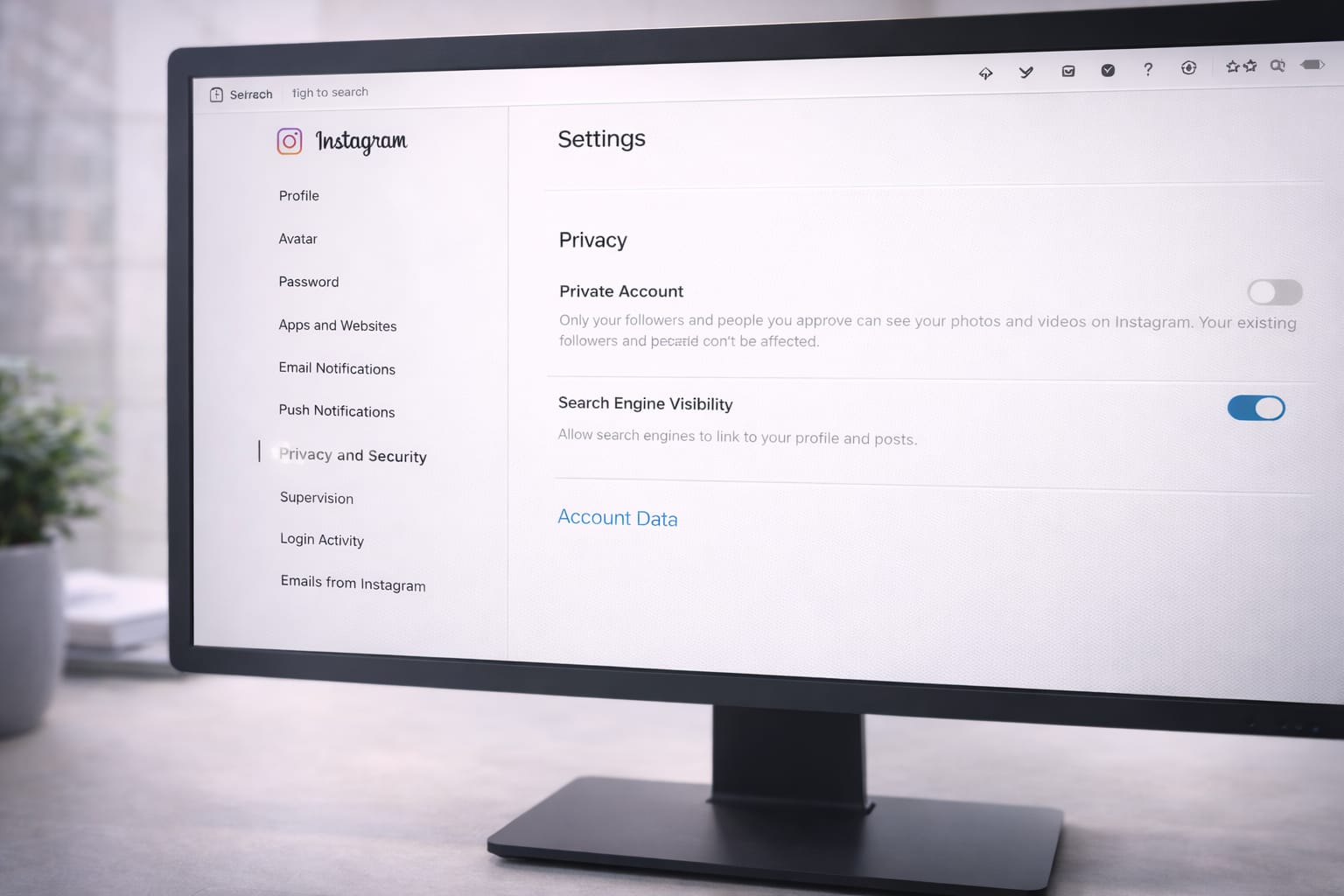
2️⃣ Step 2: Turn Off “Show Your Profile on Search Engines”
Instagram offers an extra setting that controls whether search engines can index your profile.
Steps:
- Go to Instagram.com (works best on desktop)
- Log in → open Settings → Privacy & Security
- Scroll to Data Download & Visibility
- Find Search Engine Visibility
- Turn OFF “Allow search engines to link to your profile”
[Insert Screenshot Step: Search Engine Visibility]
This prevents Google from crawling your public profile link.
3️⃣ Step 3: Remove Instagram Links from Other Sites
Google may still show your Instagram link if it’s posted on:
- Blogs
- Social networks
- Online directories
- Forums
- Business listings
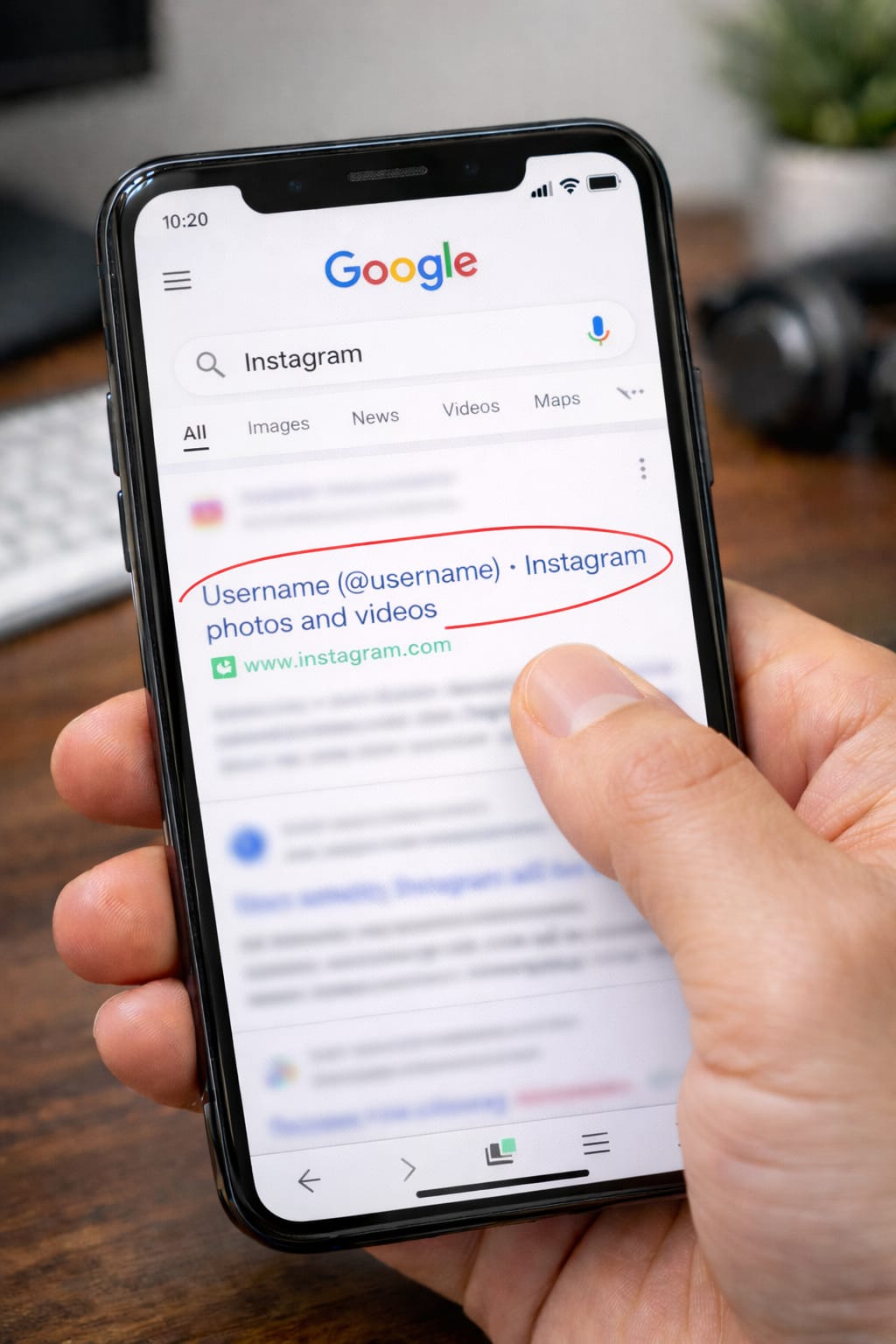
Search your username on Google and request removal from sites you control.
4️⃣ Step 4: Clear Google’s Cached Version (Optional)
Even after making your account private, Google may show old cached information.
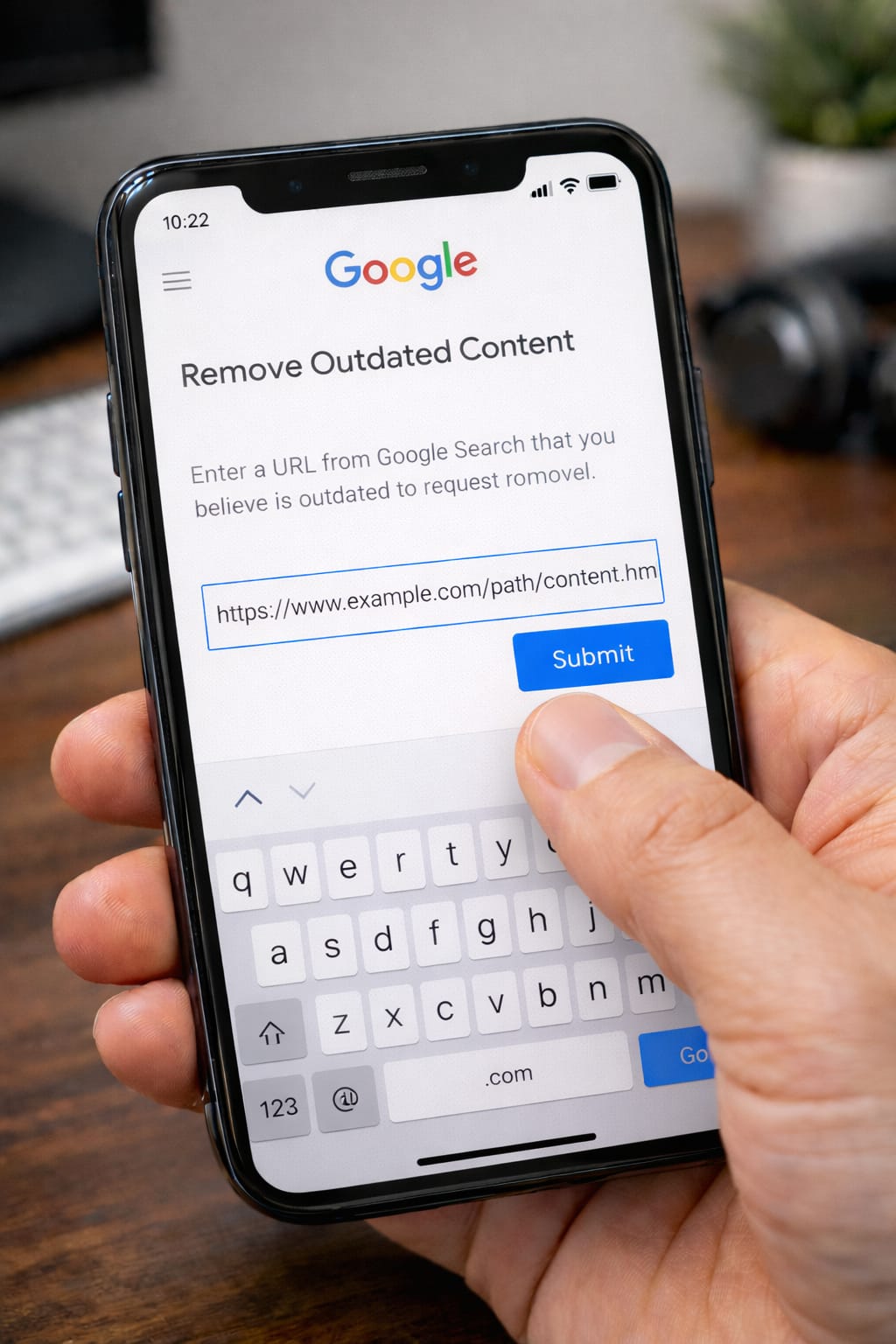
Use Google’s “Remove Outdated Content” tool:
Google → “Remove Outdated Content” → Submit your Instagram profile URL
Google usually removes it within a few days.
5️⃣ Step 5: Change Your Username (Optional but Effective)
If your old username is heavily indexed by Google, consider changing it.
Steps:
Profile → Edit Profile → Username → Enter new one
Your old username will eventually disappear from search results.
Alternative Methods (If Google Still Shows Your Profile)
Try these extra steps:
Use a Different Login Method
If your profile still appears, unlink your Instagram from:
- Websites where you used “Login with Instagram”
Remove Instagram Business Tools
Business accounts often appear on search engines more easily.
Switch to Personal Account:
Profile → Settings → Account → Switch to Personal
Disable Contact Sync
Contacts sync can link your number or email to Google.
Instagram → Settings → Account → Contacts Sync → Turn OFF
How to Contact Instagram Support
If your profile still appears on Google after several weeks, contact Instagram.
In-App Support:
Profile → Menu → Settings & Privacy → Help → Report a Problem
Submit:
- Screenshot of Google result
- Your Instagram username
- Steps you already tried
Web Support:
help.instagram.com → Privacy & Safety Center
Conclusion:
To hide your Instagram profile from Google, make your account private, turn off search engine visibility, and remove any external links containing your username. If Google still displays old data, use the outdated content removal tool. Follow these steps carefully for maximum privacy.
FAQs:
Q. Why is my Instagram still showing on Google after making it private?
A. Google often stores cached versions of web pages. Even after you make your Instagram account private or disable search engine visibility, Google may take several days or even weeks to update its search results. To speed up removal, you can use Google’s “Remove Outdated Content” tool to request deletion of old cached links.
Q. Can I hide my Instagram profile without making it private?
A. Partially. You can turn off search engine visibility, remove external links to your profile, and change your username. However, if your account remains public, some information may still appear in Google search results.
Q. Can I recover my Instagram account without an email or phone number?
A. Yes. Instagram provides recovery options such as identity verification forms, trusted device login, and help requests using your username. Go to the login screen, tap “Forgot password?”, then select “Need more help?” and follow the instructions.