
 Slow internet and laggy mobile performance are two of the most frustrating issues for Android and iPhone users. Pages won’t load, apps freeze, videos buffer forever, and even simple tasks take too long. This guide shows you how to fix slow internet and mobile performance step by step using real, proven solutions.
Why Does Slow Internet or Slow Phone Performance Happen?
These are the most common reasons users face slow internet or lag on mobile:
- Weak or unstable Wi-Fi or mobile data
- Too many background apps
- Cache/data overload
- Browser cookies slowing down pages
- Outdated system software
- Low storage space
- Network setting errors
- VPN slowing down the connection
Based on user reports and general troubleshooting, these are the most frequent causes.
Step-by-Step Fixes to Fix Slow Internet on Mobile
Follow these steps in order — many users solve the problem by Step 3.
1️⃣ Check Your Internet Connection
Before troubleshooting, make sure your connection is stable.
Try these:
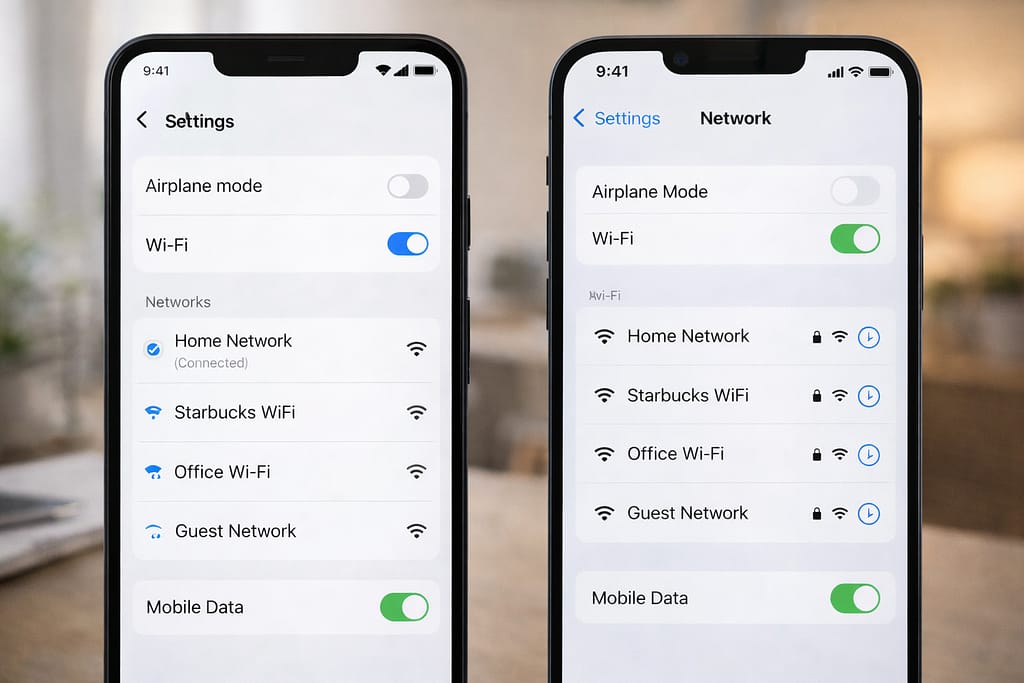
- Turn Airplane Mode ON → wait 5 seconds → OFF
- Switch between Wi-Fi and Mobile Data
- Restart your router
- Move closer to the Wi-Fi source
- Turn off VPN (slows down many apps)
[Insert Screenshot Step: Network Settings]
2️⃣ Clear Browser & App Cache
Cached data can slow loading speeds and affect performance.
Browser Cache (Chrome/Safari):
- Chrome: Menu → History → Clear Browsing Data
- Safari: Settings → Safari → Clear History & Website Data
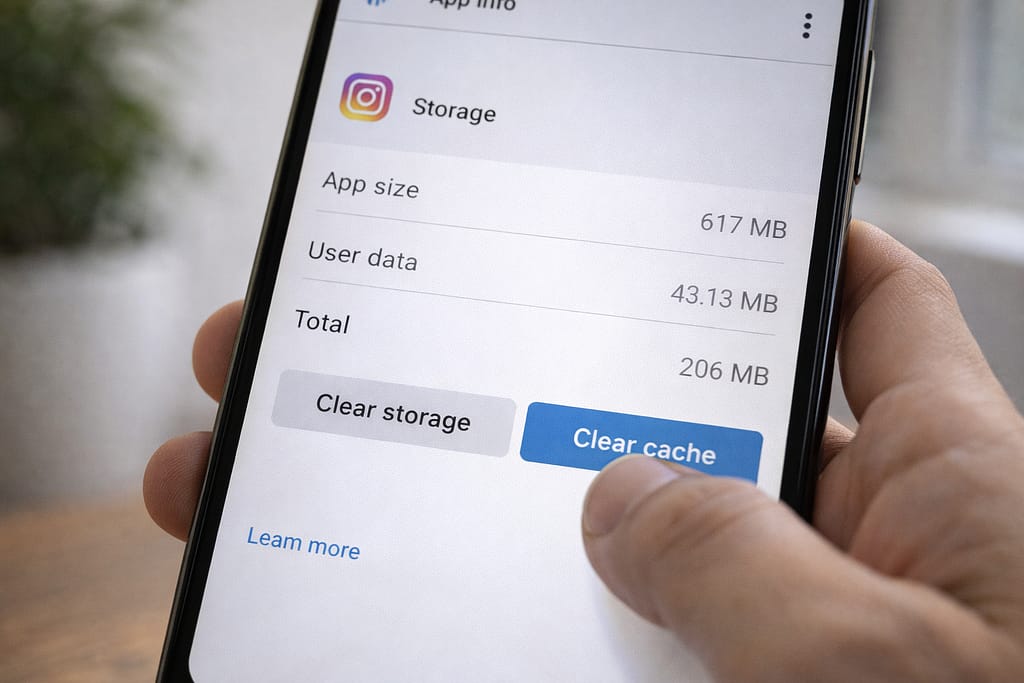
App Cache (Android Only):
Settings → Apps → [App Name] → Storage → Clear Cache
iPhone users must reinstall the slow app because iOS doesn’t offer manual cache cleaning.
3️⃣ Restart Your Phone
A simple restart clears temporary system glitches, resets networks, and boosts speed.
Many users said this instantly fixed lag, especially after a long period without restarting.
4️⃣ Update Slow Apps & Your System Software
Old versions cause bugs, slow loading, and network issues.
Update Apps:
- Android: Play Store → Update
- iPhone: App Store → Update
Update System:
Settings → System/General → Software Update
Install the latest update to improve speed and connectivity.
5️⃣ Remove Background Apps & Disable Auto-Sync
Too many apps running at once slow down your network and performance.
Steps:
- Close all background apps
- Disable auto-sync for unused apps
- Turn off background app refresh (iPhone: Settings → General → Background App Refresh)
6️⃣ Free Up Storage Space
Low storage = slow internet processing + slow performance.
Delete:
- Old photos/videos
- Junk files
- Unused apps
- Duplicate downloads
[Insert Screenshot Step: Storage Settings]
7️⃣ Reset Network Settings
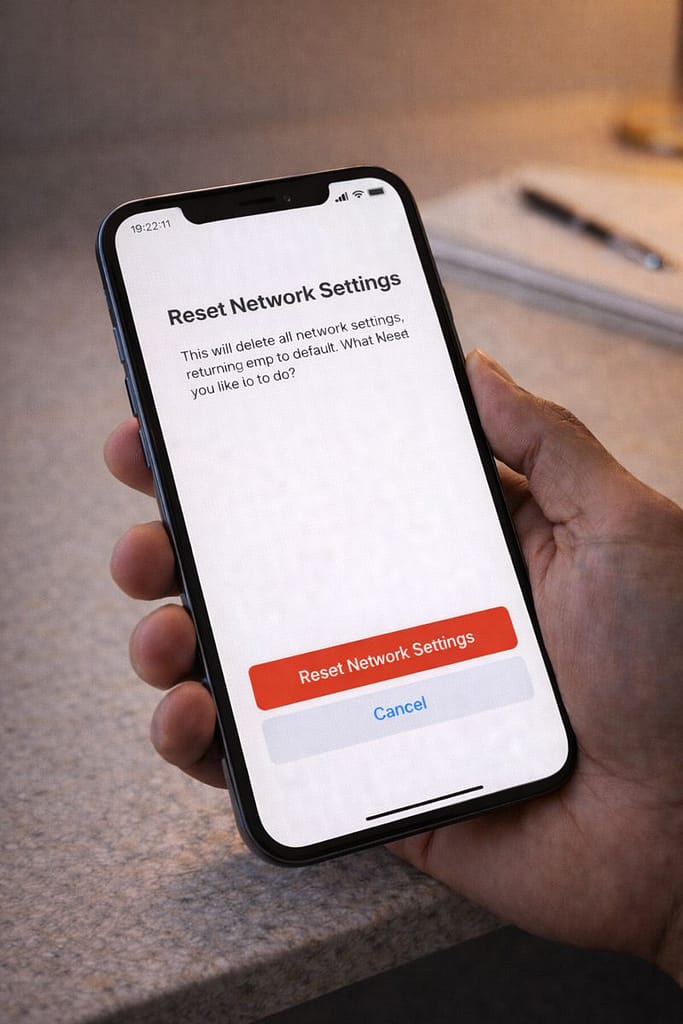
This fixes hidden internet issues like misconfigured DNS or stuck APN profiles.
Android:
Settings → System → Reset → Reset Wi-Fi, Mobile & Bluetooth
iPhone:
Settings → General → Transfer/Reset → Reset Network Settings
This does NOT delete your personal data — only network-related settings.
8️⃣ Reinstall Problematic Apps
If only one app is slow, reinstall it.
This removes corrupted files and gives the app a clean start.
Alternative Methods
If nothing works, try these additional fixes:
Switch to 5 GHz Wi-Fi
2.4 GHz is slower and more crowded.
Use a Browser Instead of the App
Many users get faster performance using the web version of Facebook, Instagram, or WhatsApp.
Try Another SIM or Network
Sometimes your carrier is the problem, not your phone.
Enable “Lite Mode” in Apps
Facebook Lite, Instagram Lite, YouTube Lite work faster on weak networks.
How to Contact Customer Support (Carrier or App Help Center)
If slow internet is related to carrier issues, contact your mobile operator:
- Open your carrier app
- Use Live Chat
- Request data reset or network refresh
For app-specific problems:
- Instagram: Settings → Help → Report a Problem
- Facebook: Support Inbox
- WhatsApp: Settings → Help → Contact Us
Include device model, screenshots, and steps you tried.
Conclusion
The easiest way to fix slow internet on mobile is by restarting the phone, clearing cache, and checking your network connection. If the issue continues, reset your network settings or update your apps. These simple troubleshooting steps work on both Android and iPhone and are based on common user solutions.
FAQs:
Q. Why is my mobile internet slow even with full signal?
A. Your internet can still be slow due to network congestion, data throttling, outdated network settings, or app cache problems. Try turning Airplane Mode on and off, clearing app cache, restarting your phone, or resetting network settings. If the issue continues, your mobile carrier may be facing temporary congestion.
Q. Why does my phone lag when using Wi-Fi or mobile data?
A. Phone lag usually happens because of low storage space, too many apps running in the background, or outdated system software. Clearing cache files, closing unused apps, and updating your phone can improve performance. Restarting the phone also refreshes memory and fixes most slowdowns.
Q. Can slow internet be fixed without resetting my phone?
A. Yes. Most slow internet issues can be fixed by resetting network settings, toggling Airplane Mode, clearing cache, or switching between Wi-Fi and mobile data. A full phone reset is rarely required.