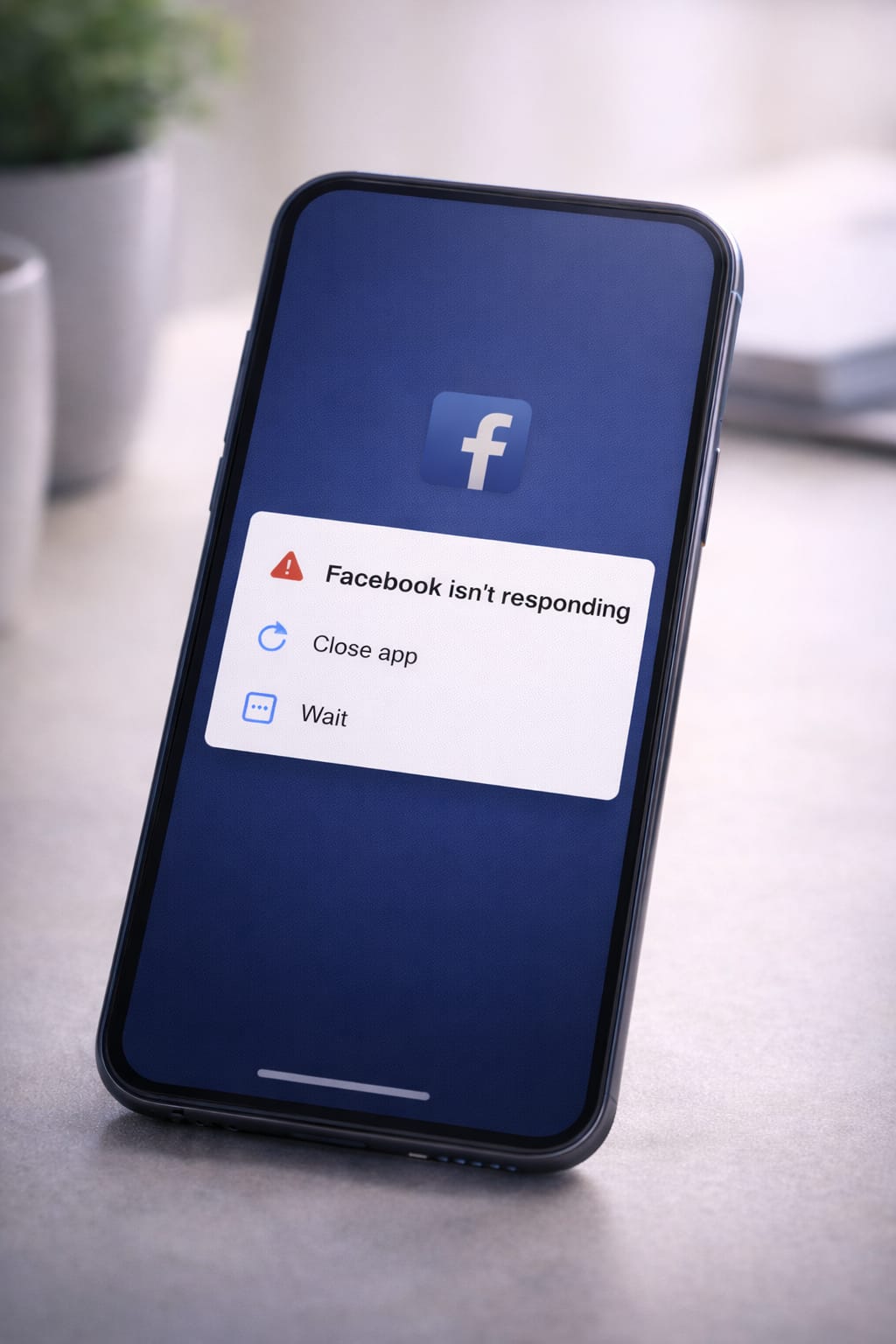
If Facebook keeps crashing on your Android phone, you’re not alone. Many users face the same issue—app freezing, shutting down instantly, or showing a black screen. This step-by-step guide explains simple fixes based on real user reports and general troubleshooting recommendations.
Why Does Facebook Keep Crashing on Android?
Facebook can crash for several common reasons:
- Outdated Facebook app
- Corrupted cache or app data
- Low storage space
- Poor or unstable internet connection
- System software not updated
- Bugs from recent updates
- Running too many background apps
These issues are often temporary and easy to fix.
Step-by-Step Fixes to Stop Facebook Crashing on Android
Follow each fix in order. Most users get Facebook working by Step 3 or Step 4.
1️⃣ Fix 1: Check Your Internet Connection
Facebook may crash if the internet is unstable.
Try this:
- Toggle Airplane mode ON → wait 5 seconds → OFF
- Switch from Wi-Fi to Mobile Data or vice versa
- Restart your router
- Turn off VPN
[Insert Screenshot Step: Network Settings]
2️⃣ Fix 2: Force Stop Facebook
This closes hidden processes that might be causing the crash.
Steps:
Settings → Apps → Facebook → Force Stop
Then open Facebook again.
Many users report this fixes instant crashes.
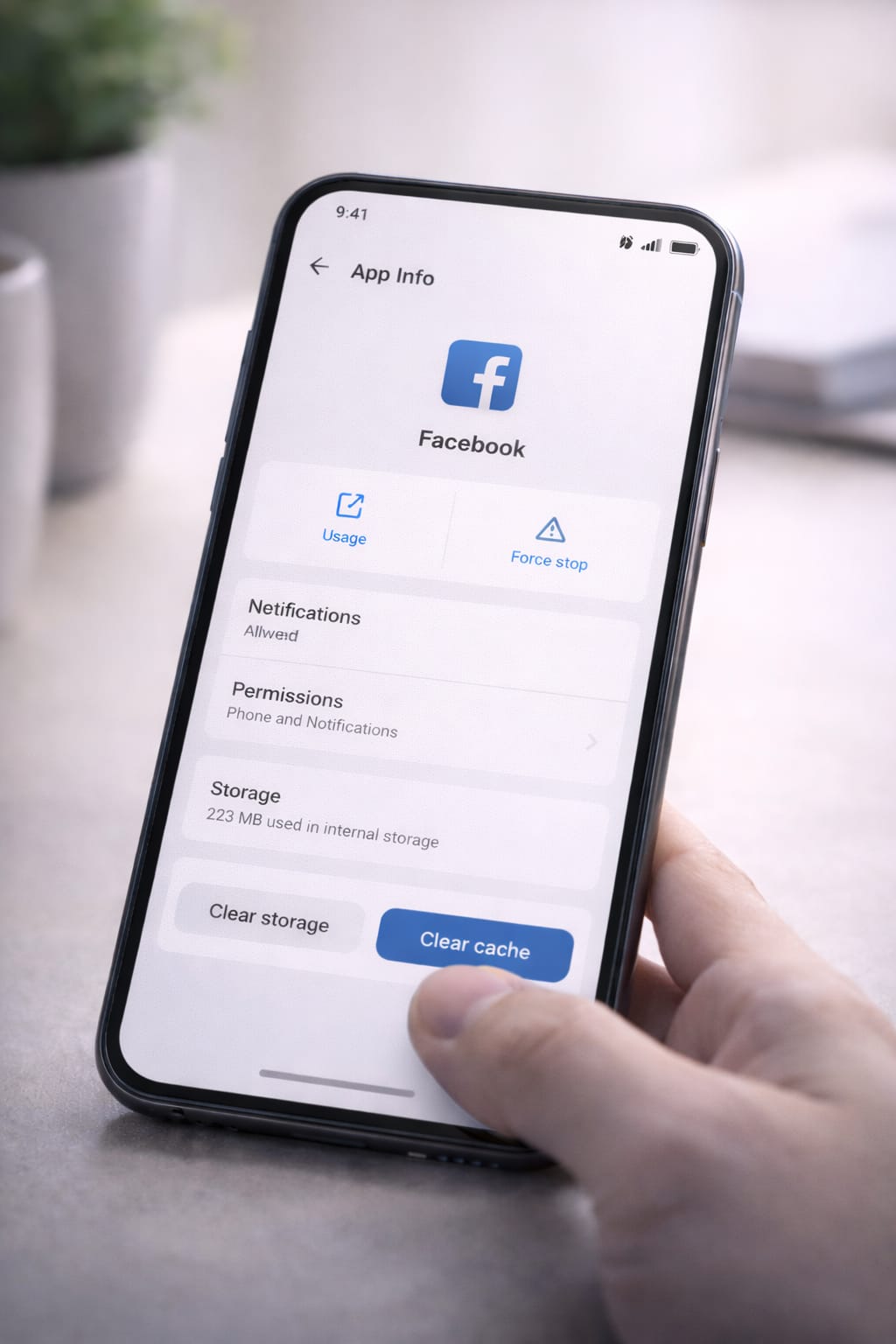
3️⃣ Fix 3: Clear Facebook Cache
This is the most effective fix for app crashes on Android.
Steps:
Settings → Apps → Facebook → Storage → Clear Cache
[Insert Screenshot Step: Clear Cache Button]
This removes temporary files without deleting your account or data.
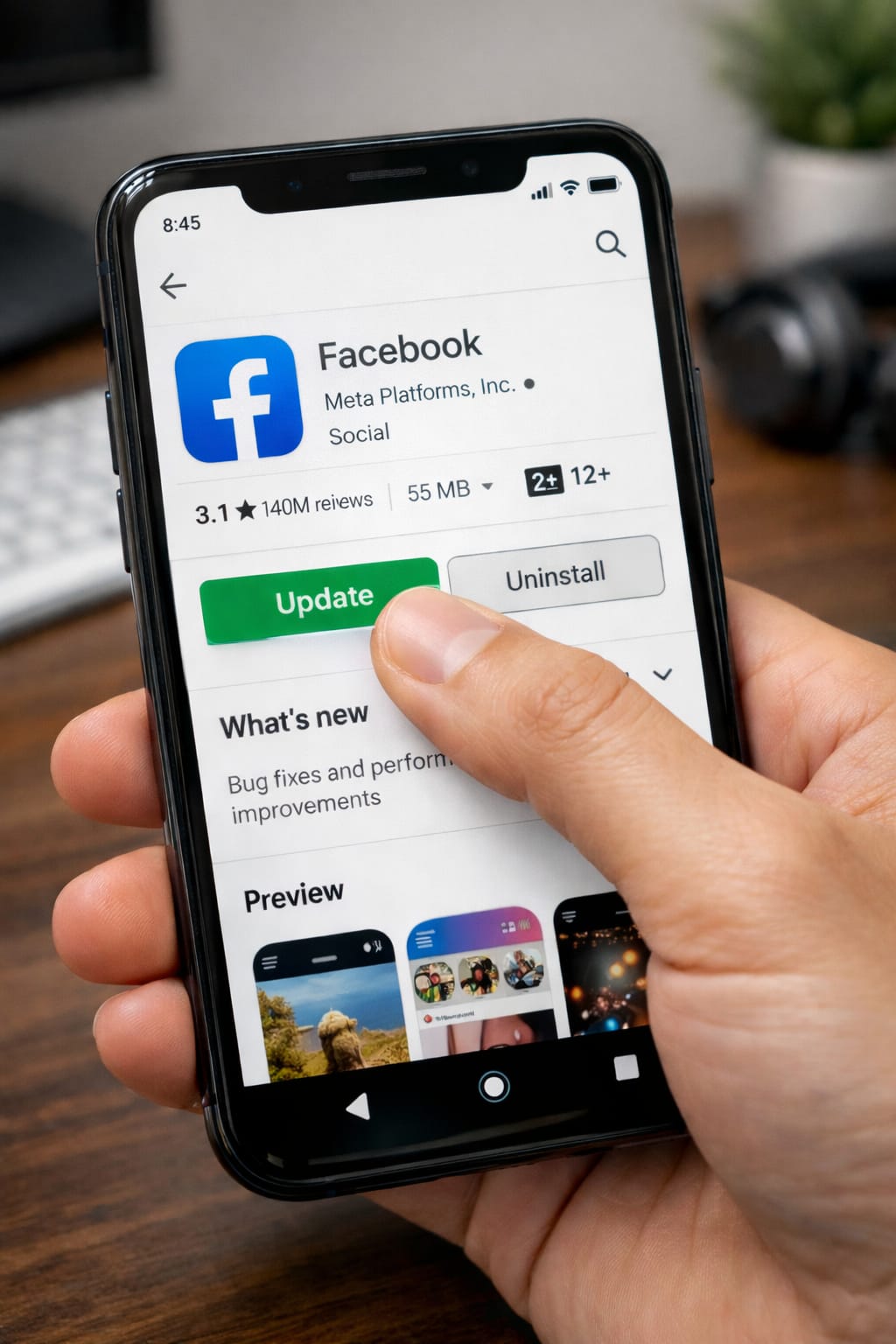
4️⃣ Fix 4: Update Facebook
An outdated version can cause crashes, especially after Android updates.
Steps:
Play Store → Search “Facebook” → Update
After updating, restart Facebook.
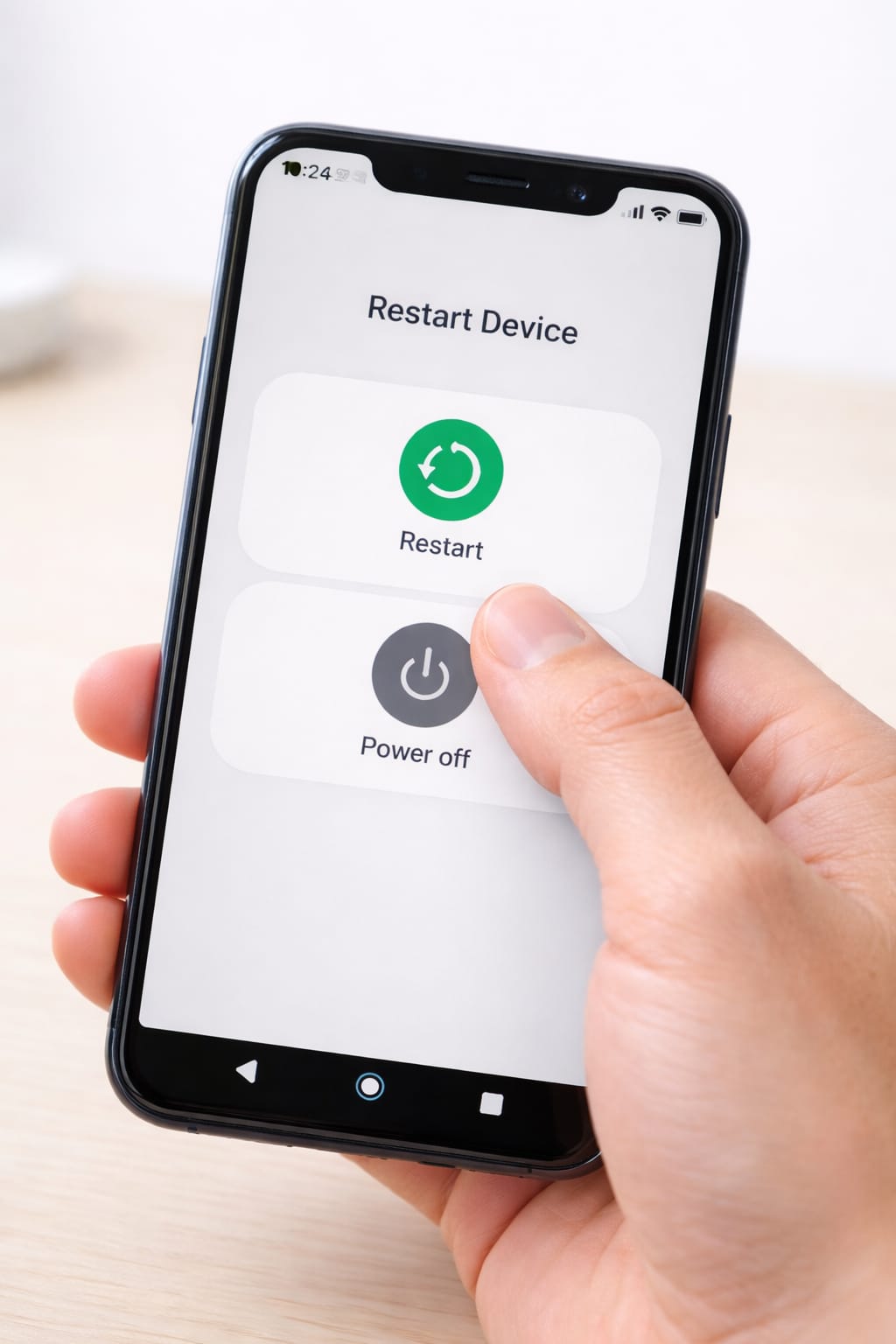
5️⃣ Fix 5: Restart Your Android Device
Restarting clears memory and fixes temporary bugs.
Hold the power button → Restart.
This helps when Facebook crashes repeatedly.
6️⃣ Fix 6: Clear Facebook App Data (If Cache Didn’t Help)
Be careful: this logs you out of Facebook.
Steps:
Settings → Apps → Facebook → Storage → Clear Data
This often solves corrupted data issues.
7️⃣ Fix 7: Reinstall Facebook
If Facebook keeps crashing after everything else, remove and reinstall it.
Steps:
- Uninstall Facebook
- Restart your phone
- Install Facebook again from Play Store
Works for most severe app crashes.
Alternative Methods (If Facebook Still Crashes)
If the main fixes didn’t work, try these:
Use Facebook Lite
Facebook Lite uses fewer resources and works well on older phones.
Try Facebook in Your Browser
Open Chrome → facebook.com
This works even if the app crashes.
Update Android System
Settings → System → Software Update
Free Up Storage
Delete unused apps/files. Low storage affects Facebook performance.
Turn Off Battery Optimization
Settings → Apps → Facebook → Battery → Disable optimization
This prevents Facebook from closing in the background.
How to Contact Facebook Support
Facebook support is harder to find but still available.
Use the Help Center:
facebook.com/help
Inside the Facebook App (if it opens):
Menu → Help & Support → Report a Problem
Provide:
- Screenshot of the crash
- Phone model
- Android version
- Steps you already tried
This helps support review your issue faster.
Conclusion
If Facebook keeps crashing on your Android device, the easiest fixes are: clearing the cache, updating the app, restarting your phone, and reinstalling Facebook. These steps solve most Android crash problems and work even on older devices. Follow each step carefully, and Facebook should start working again.
FAQs:
Q. Can I recover my Facebook account without an email or phone number?
A. Yes. Facebook provides account recovery options through identity verification, such as confirming your name, uploading photos or an ID, or using trusted contacts. On the login screen, select “No longer have access to these?” and follow the recovery instructions.
Q. Why is Facebook not sending my verification code?
A. Facebook may stop sending verification codes because of too many attempts, the use of a VPN, or delays from your mobile carrier. Restart your phone, switch between Wi-Fi and mobile data, or choose “Send code to email instead.” Many users report that email verification arrives faster.
Q. Why is Facebook crashing on my Android phone?
A. Facebook usually crashes due to corrupted cache files, an outdated app version, low storage space, or Android system issues. Try force-stopping the app, clearing the cache, updating Facebook, restarting your phone, or reinstalling the app. These steps fix most crashing problems quickly.