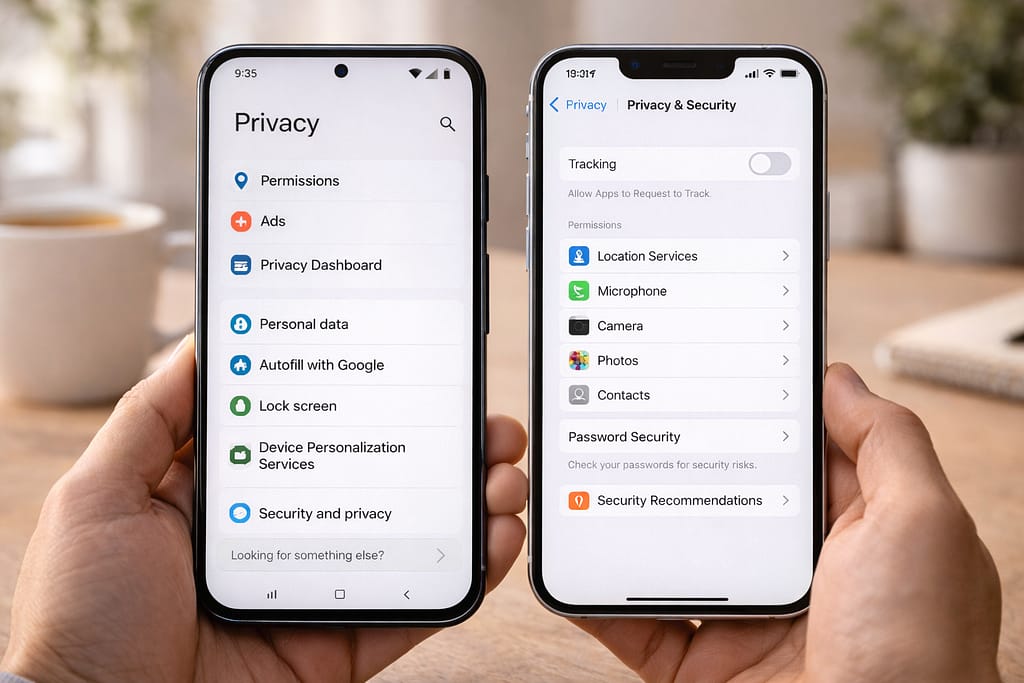
 Digital privacy matters more than ever. Many beginners don’t know that apps, websites, and even phones collect data—location, contacts, search history, browsing habits, and more. This simple, non-technical guide explains how to protect your privacy step-by-step without confusing technical jargon.
Why Do Digital Privacy Problems Happen?
New users often face privacy issues because they don’t realize how much data apps collect automatically. Here are common reasons:
- Apps request unnecessary permissions
- Weak passwords or no two-factor authentication
- Browsers save too much history or cookies
- Cloud backups not encrypted
- Using public Wi-Fi without protection
- Settings not adjusted after updates
Based on common support reports and general troubleshooting, these are the most frequent causes of privacy risks.
Step-by-Step Privacy Settings Every Beginner Should Turn On
These steps work on Android & iPhone, and most social media apps.
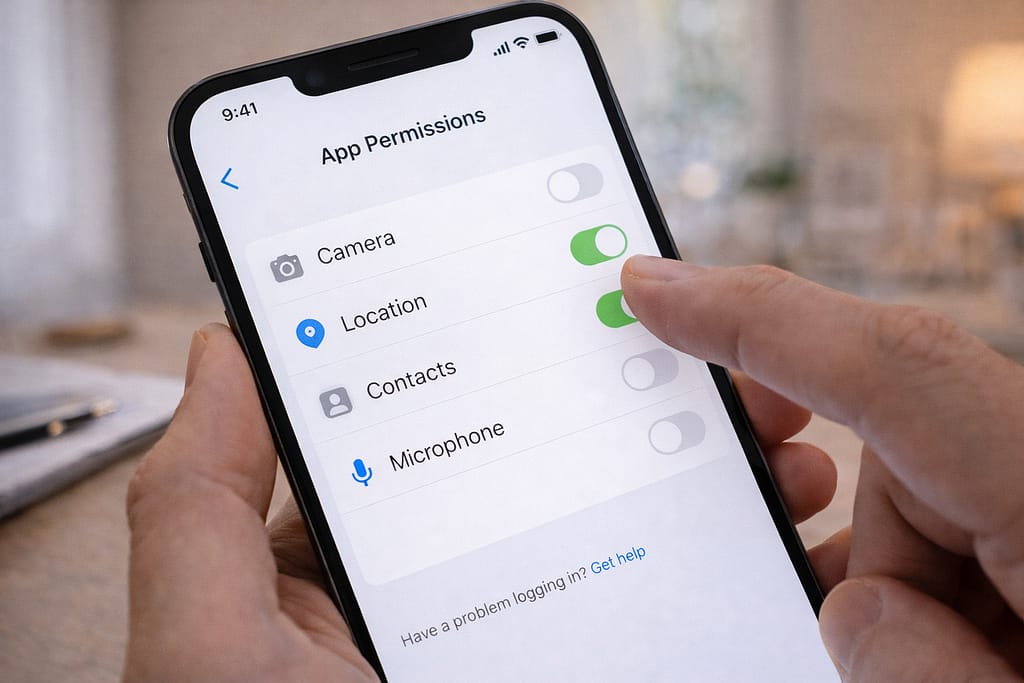
1️⃣ Step 1: Check App Permissions
Most privacy leaks come from apps having more access than needed.
What to do:
- Go to Settings → Apps → Permissions
- Disable anything the app doesn’t need (e.g., a calculator should not access your location)
[Insert Screenshot Step: App Permissions]
This instantly improves digital privacy for beginners.
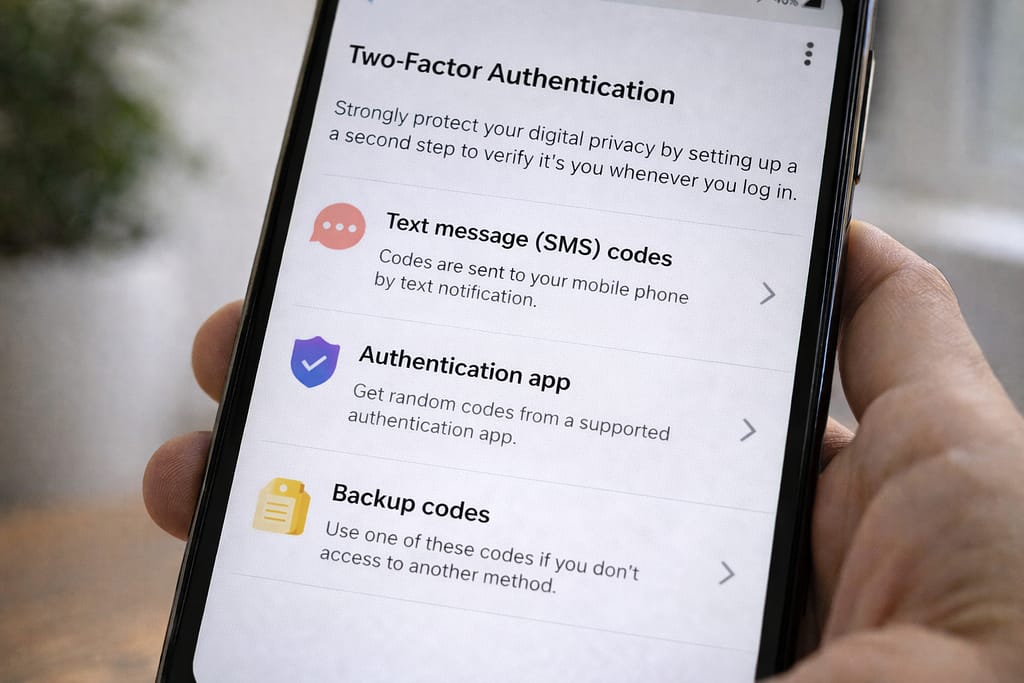
2️⃣ Step 2: Turn On Two-Factor Authentication (2FA)
2FA prevents unauthorized access even if someone knows your password.
Find it in:
- Instagram / Facebook: Settings → Accounts Center → Password & Security
- Google: Security → 2-Step Verification
- WhatsApp: Settings → Account → Two-Step Verification
Many users said enabling 2FA stopped suspicious login attempts.
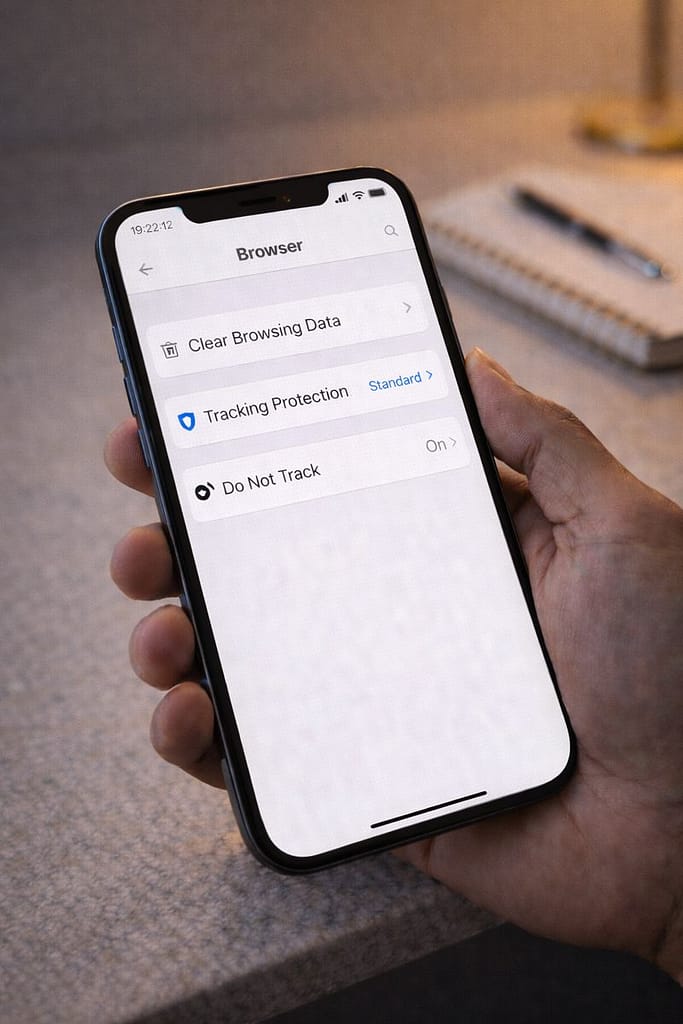
3️⃣ Step 3: Clear Your Browsing Data & Cookies
Your browser stores a lot of personal data—searches, passwords, and visited sites.
How to do it:
- Chrome: Menu → History → Clear Browsing Data
- Safari: Settings → Safari → Clear History & Website Data
This also helps fix slow loading and tracking issues.
4️⃣ Step 4: Disable Tracking & Personalized Ads
Apps track how you use your phone to show targeted ads.
iPhone:
Settings → Privacy → Tracking → Turn off “Allow Apps to Request to Track”
Android:
Settings → Privacy → Ads → Turn off “Ad Personalization”
[Insert Screenshot Step: Tracking Toggle]
5️⃣ Step 5: Use Strong Passwords & a Password Manager
Avoid using the same password everywhere.
Password managers help you create strong, unique passwords.
Examples:
- Google Password Manager
- iCloud Keychain
- Bitwarden (free)
6️⃣ Step 6: Lock Your Phone With Secure Options
Avoid simple passcodes like “0000” or birthdays.
Best options:
- 6-digit PIN
- Device passphrase
- Fingerprint or Face unlock
This protects your data even if the phone is lost.
7️⃣ Step 7: Turn Off Unnecessary Location Access
Many apps don’t need your location at all.
Settings:
- Android: Settings → Location → App Access
- iPhone: Settings → Privacy → Location Services
Choose “While Using the App” or “Deny.”
8️⃣ Step 8: Use a Secure Browser or “Incognito Mode.”
If you want extra protection:
- Use Firefox, Brave, or DuckDuckGo
- Use incognito mode to prevent local tracking
This works even without email or account login.
Alternative Methods (If Privacy Settings Still Don’t Help)
If you still feel tracked or your data is exposed:
Use a VPN (Trusted Only)
This hides your IP address—but avoid free VPNs.
They often collect more data.
Use End-to-End Encrypted Apps
Examples:
- Signal
- Telegram (Secret Chat)
Disable Cloud Backups Temporarily
If you store sensitive files, back them up manually.
Use the Web Version Instead of the App
Web versions collect fewer permissions.
How to Contact Customer Support
If you suspect someone hacked your account or you want to delete data:
Facebook:
Settings → Help & Support → Report a Problem
Instagram:
Settings → Help → Privacy & Safety Center
WhatsApp:
Settings → Help → Contact Us
Provide to support:
- Screenshot of issue
- Device model
- Steps you have already tried
Support teams respond faster with full details.
FAQs:
Q. How do I stop apps from tracking me?
A. You can reduce app tracking by disabling app tracking in your Android or iPhone privacy settings, turning off location access for unnecessary apps, avoiding social media logins for third-party apps, and regularly clearing cookies and app data.
Q. Why is Instagram asking for my phone number?
A. Instagram may ask for your phone number for security checks, unusual login activity, or identity verification. A phone number also helps with account recovery if you forget your password. If you prefer not to share your number, you can skip this step or use an email address instead, though some features may require verification.
Q. Can I improve privacy without using a VPN?
A. Yes. You can improve your privacy by turning off unnecessary app permissions, clearing browser and app data, using strong and unique passwords, and disabling tracking options in your device settings. A VPN can add extra protection but is not required for everyday use.