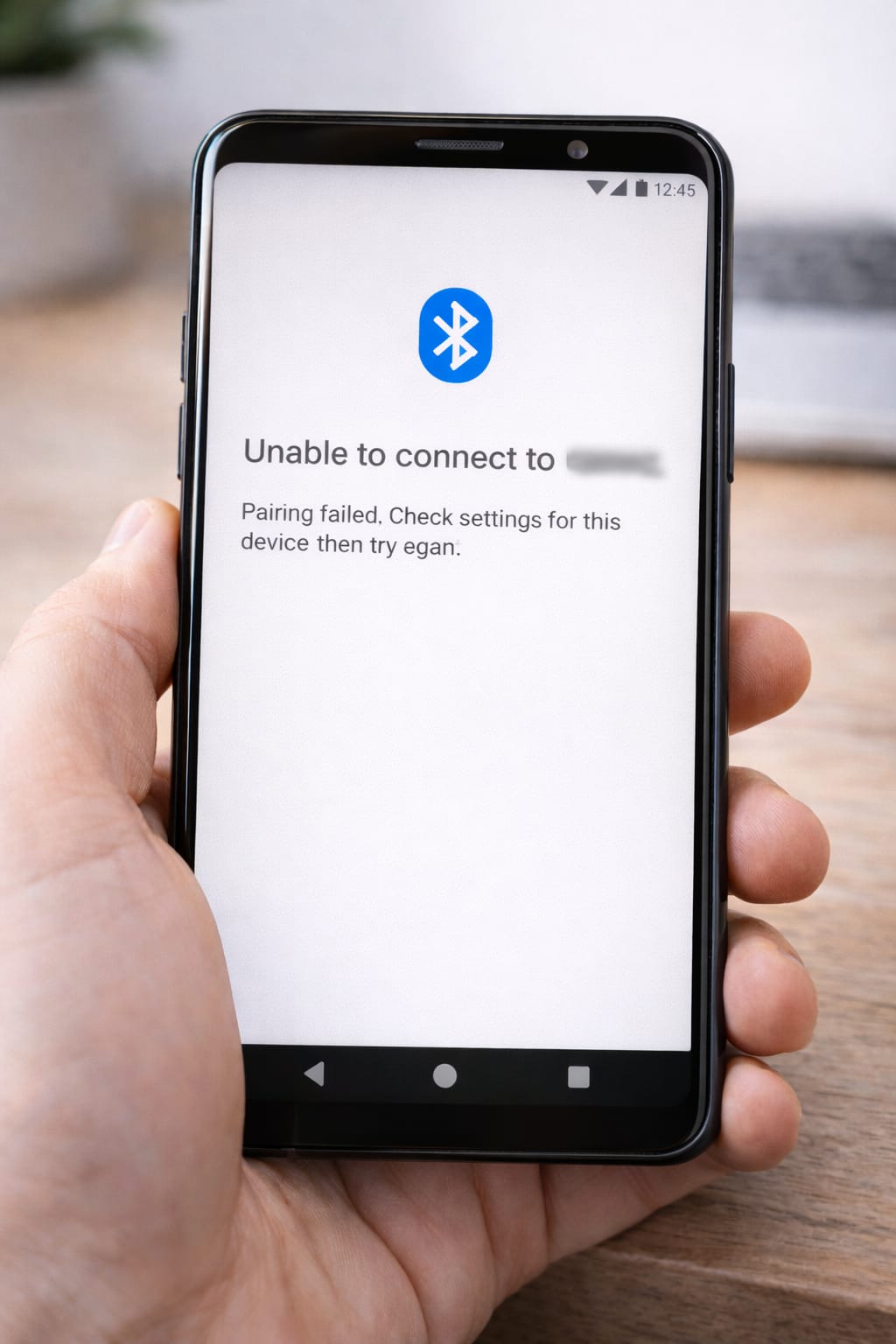
Bluetooth issues are extremely common. Whether you’re trying to connect earbuds, a smartwatch, a speaker, or your car stereo, sometimes your phone shows “Pairing failed,” “Unable to connect,” or the device simply doesn’t appear. This guide explains the real reasons Bluetooth won’t pair—and how to fix it easily on Android and iPhone.
Why This Problem Happens? (Common Causes of Bluetooth Pairing Issues)
Bluetooth may not pair because:
- Device is already connected to another phone
- Bluetooth cache is corrupted
- Devices are too far apart
- Low battery on accessory
- Outdated software
- Wrong pairing mode
- Too many saved Bluetooth connections
Based on user reports, “device connected elsewhere” is the #1 reason for pairing failures.
Step-by-Step Fixes for Bluetooth Not Pairing
Follow these steps in order. Works on Android & iPhone.
1️⃣ Turn Bluetooth OFF/ON (Quick Reset)
This resets temporary Bluetooth glitches.
Steps:
- Swipe down → Tap Bluetooth
- Turn it OFF
- Wait 5 seconds
- Turn it back ON
Most pairing failures fix after this simple reset.
2️⃣ Make Sure Device is in Pairing Mode
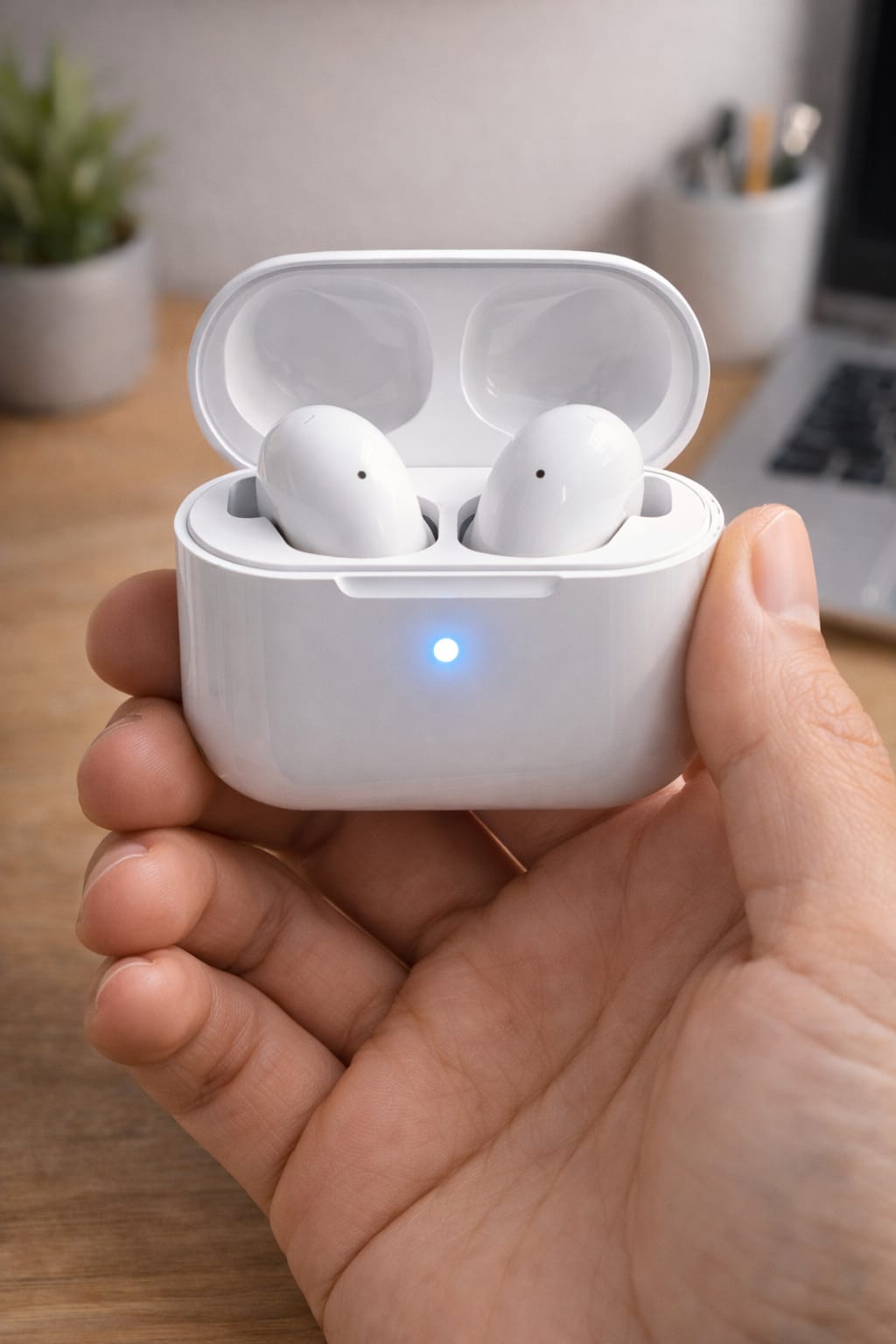
Earbuds, speakers, and watches must be in pairing mode.
Examples:
- Earbuds: press & hold button for 3–5 seconds
- Speakers: press Bluetooth button
- Smartwatch: open pairing settings
If the device isn’t flashing/pairing, your phone won’t detect it.
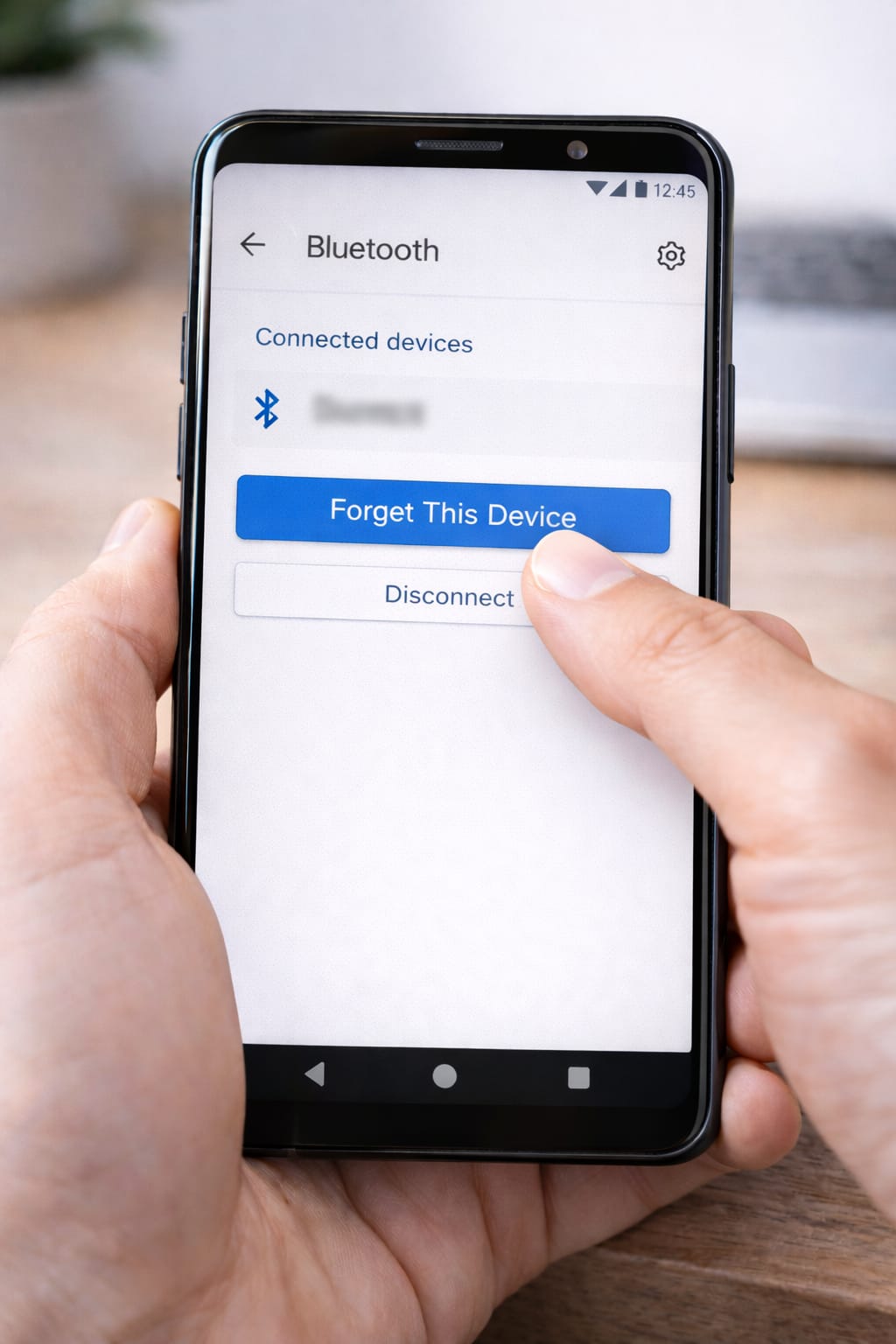
3️⃣ Remove Old Bluetooth Devices (Very Effective)
Too many saved devices can cause pairing issues.
Steps:
Android/iPhone:
Settings → Bluetooth → Tap device name → Forget / Remove Device
Then try pairing again.
[Insert Screenshot Step: Forget Device]
4️⃣ Charge the Bluetooth Device
Low battery prevents pairing on many earbuds and watches.
Charge for at least 10 minutes and try again.
5️⃣ Keep Devices Close (Under 1 Meter)
Bluetooth has limited range.
Move your phone and Bluetooth device close together.
6️⃣ Clear Bluetooth Cache (Android Only)
This fixes corrupted Bluetooth data causing errors.
Steps:
Settings → Apps → Show System Apps → Bluetooth → Storage → Clear Cache
Many Android users say this instantly fixed pairing errors.
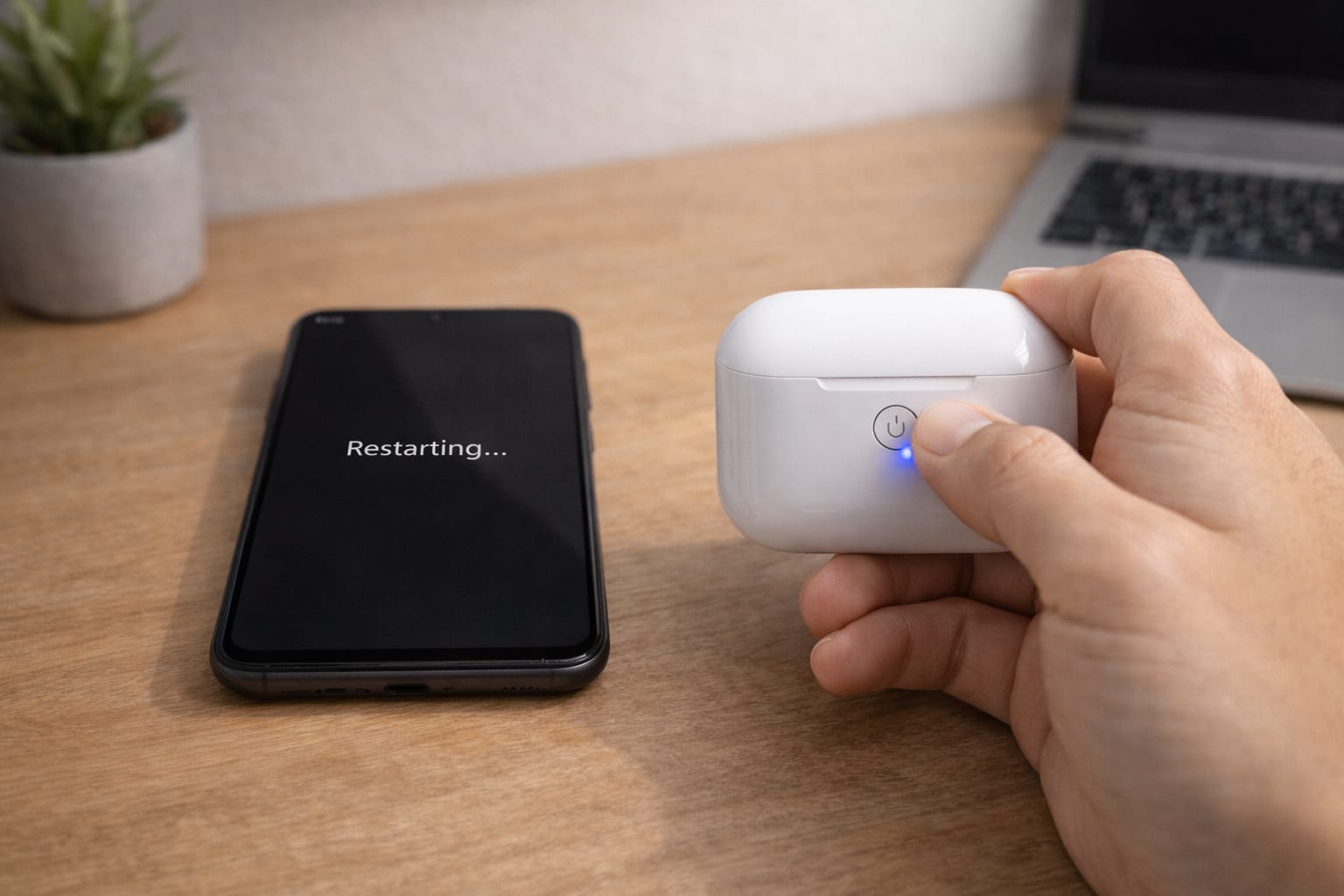
7️⃣ Restart Both Devices
Restarting clears hidden system issues.
Steps:
- Restart your phone
- Restart your Bluetooth device
Try pairing again.
8️⃣ Update System Software
Old versions cause Bluetooth instability.
Android/iPhone:
Settings → Software update → Install update
9️⃣ Reset Network Settings (Fixes Deep Bluetooth Glitches)
Android:
Settings → System → Reset → Reset Network Settings
iPhone:
Settings → General → Transfer or Reset → Reset Network Settings
This removes all Bluetooth/WiFi connections and fixes major pairing failures.
Alternative Methods (If Pairing Still Fails)
Try Pairing with Another Device
If it works on a different phone, the issue is with your phone—not the accessory.
Reset Bluetooth Accessory
Most devices have a reset method (press 10–15 seconds).
Turn Off Other Bluetooth Devices Nearby
They may interfere with pairing.
Update Bluetooth Accessory Firmware
Smartwatches and earbuds often have update apps.
How to Contact Support for Bluetooth Devices
If your Bluetooth accessory still won’t pair:
Phone Support
- Samsung Support App
- Apple Support (iPhone)
Bluetooth Device Support
Visit the brand’s help center:
- JBL
- Boat
- Sony
- Samsung
- Apple (AirPods)
Explain:
- Device name
- Phone model
- Error message
- Steps you tried
Conclusion
Bluetooth not pairing usually happens due to simple issues like pairing mode, low battery, or old saved connections. By forgetting devices, restarting, clearing cache, and resetting network settings, you can fix 95% of Bluetooth pairing problems.
FAQs
Q. Why won’t my Bluetooth device show up on my phone?
A. This usually happens when the device is not in pairing mode, is already connected to another phone, or is out of range. Try resetting Bluetooth, removing old paired devices, and make sure the accessory is flashing or ready to pair. Restarting your phone can also help.
Q. Why does Bluetooth keep disconnecting?
A. Bluetooth can disconnect due to a weak signal, low battery, outdated software, or interference from other devices. Keep the devices close together, update the software, and remove unused paired devices.
Q. Can I recover my account without an email or phone number?
A. Yes. Many apps, such as Facebook or Instagram, allow account recovery through ID verification, trusted devices, or alternative login options.